How to Configure MQTT Locally (Without AirGradient Dashboard)
How to Configure MQTT Locally (Without AirGradient Dashboard)
If you prefer to keep your smart home completely local, besides connecting your AirGradient monitor to Home Assistant via the official integration. You can also set up your monitor to send messages to your MQTT server, and you don't need the AirGradient Dashboard or any cloud services to configure this at all.
Both the AirGradient ONE and Open Air monitors allow you to configure your MQTT broker directly via their local API.
Prerequisite: You will need your monitor’s local address:
http://airgradient_YOUR_SERIAL.local
For example, your AirGradient monitor's serial number is d83bda1b6eac, you can put this as the local address: http://airgradient_d83bda1b6eac.local
Alternative: If your home network doesn't support .local addresses, you can simply use the monitor's local IP address instead (e.g., http://192.168.0.55/config). If you use this method, we highly recommend setting a static IP or DHCP reservation for the monitor in your router's settings.
Step 1: Formatting Your MQTT URL
Before you send the configuration command, format your MQTT broker URL correctly:
Basic MQTT setup (No password): mqtt://192.168.0.18:1883
MQTT with Authentication (Username & Password): If your broker requires login credentials, format it like this:
mqtt://YOUR_USERNAME:YOUR_PASSWORD@192.168.0.18:1883
Step 2: Send the Configuration Payload
To ensure your monitor applies your local settings and prevents the AirGradient cloud from overwriting them, we will send both the configurationControl and mqttBrokerUrl parameters together in a single request.
Method 1: The Visual Way (Using tools like Yaak, Bruno, Postman, etc.)
In this article, we will use Yaak as it's a free and open-source desktop app that provides a clean, visual interface for sending API commands (Bruno is also free and open-source, with a little more complicated user interface).
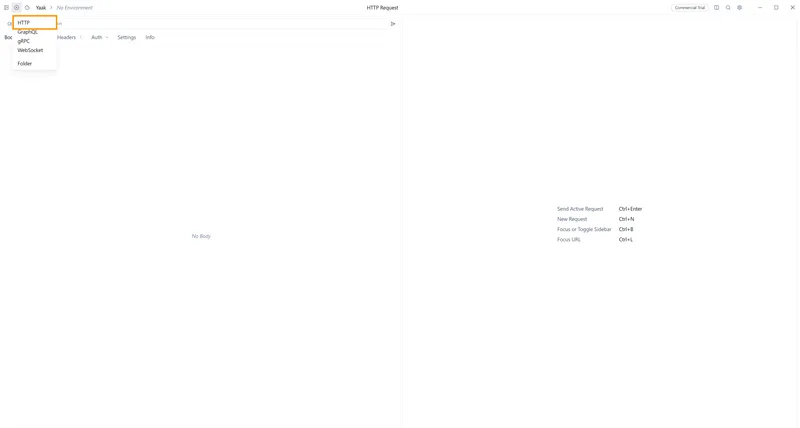
- Open Yaak and click the + button at the top left of the screen, then click HTTP.
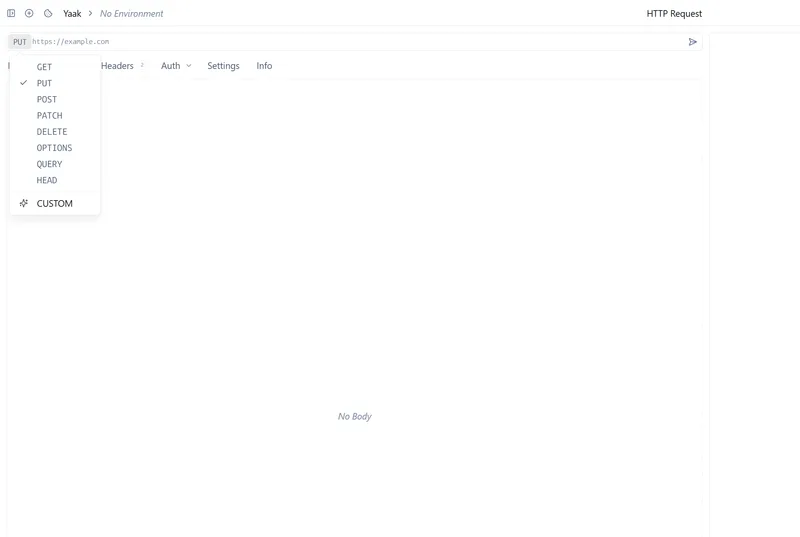
- Change the HTTP method dropdown to PUT.
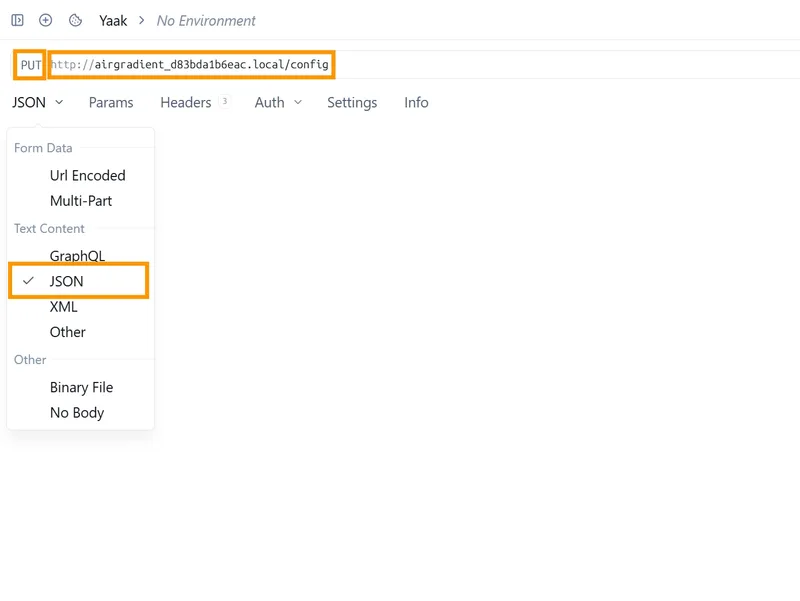
Enter your monitor's config URL:
http://airgradient_YOUR_SERIAL.local/config(or your monitor's local IP address likehttp://192.168.0.55/config).Click the Body tab directly under the URL bar and select JSON.
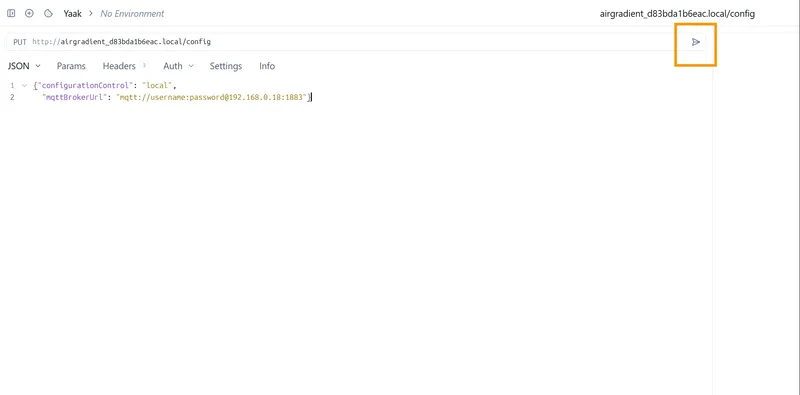
- Paste the following configuration, replacing the URL with your actual MQTT broker details (please also include { , } at the beginning and the end):
{"configurationControl": "local", "mqttBrokerUrl": "mqtt://username:password@192.168.0.18:1883"}
- Click the arrow icon to send. If the program turns back messages such as 200 OK or Success, it means the configuration is successfully sent to you AirGradient monitor.
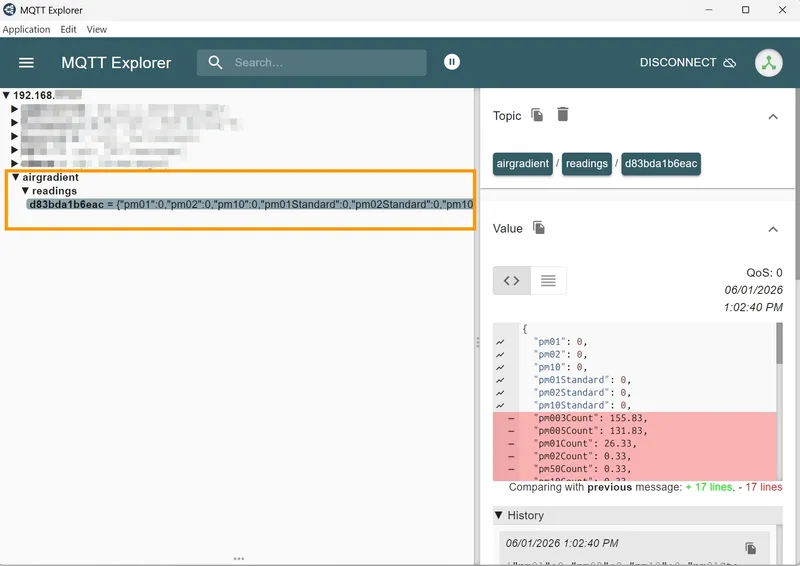
Your monitor will immediately apply the settings and begin broadcasting to your local MQTT broker (you may need to wait for a few minutes until you see the readings sent under MQTT topic airgradient/readings/serial_number.
You can check with a tool like MQTT Explorer if you'd like (not required).
Method 2: Command Line (Built-in OS Tools)
If you prefer not to install any external applications, you can send the configuration instantly using your operating system's built-in terminal.
For Linux and macOS Users
Open your Terminal and run the following command (please update your AirGradient monitor's serial number or IP address, as well as your MQTT username, password, and URL):
curl -X PUT -H "Content-Type: application/json" -d '{"configurationControl": "local", "mqttBrokerUrl": "mqtt://username:password@192.168.0.18:1883"}' http://airgradient_YOUR_SERIAL.local/config
For Windows Users
Open Command Prompt (cmd.exe) and run the following command (please update your AirGradient monitor's serial number or IP address, as well as your MQTT username, password, and URL):
curl.exe -X PUT -H "Content-Type: application/json" -d "{\"configurationControl\": \"local\", \"mqttBrokerUrl\": \"mqtt://username:password@192.168.0.18:1883\"}" http://airgradient_YOUR_SERIAL.local/config
How to Remove or Reset Your MQTT Configuration
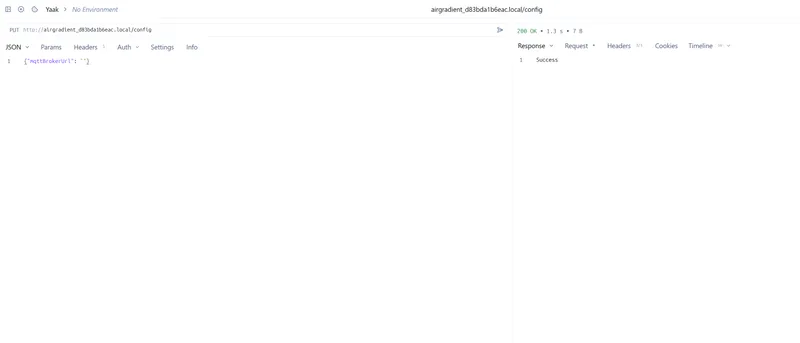
If you want to stop your AirGradient monitor from sending data to your MQTT server, you do not need to factory reset the device. You simply need to clear out the MQTT broker URL by sending an empty string ("") to the mqttBrokerUrl parameter. You can leave configurationControl set to local to retain local API control.
Using Yaak (or other visual tools):
Update your JSON payload to look like this and click send (the arrow icon):
{"mqttBrokerUrl": ""}
Using Linux / macOS Terminal:
curl -X PUT -H "Content-Type: application/json" -d '{"mqttBrokerUrl": ""}' http://airgradient_YOUR_SERIAL.local/config
Using Windows Command Prompt:
curl.exe -X PUT -H "Content-Type: application/json" -d "{\"mqttBrokerUrl\": \"\"}" http://airgradient_YOUR_SERIAL.local/config