How to Create and Subscribe to Alarms in the Dashboard
How to Create and Subscribe to Alarms in the Dashboard
AirGradient dashboard alarms can notify users by email when readings meet specific conditions.
Create a New Alarm
Log in to the AirGradient dashboard.
Go to Alarms and Notifications.
Open the Alarms tab.
Click Add New.
Configure the alarm criteria.
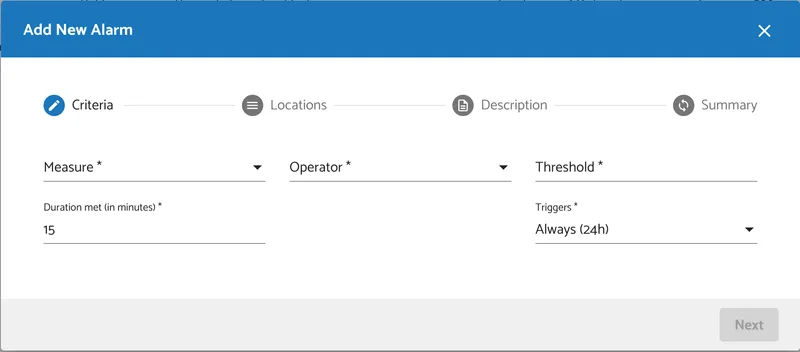
| Field | Description |
|---|---|
| Measure | The parameter the alarm is based on, for example CO2, PM2.5 |
| Operator | Defines how the reading is compared to the threshold, for example greater than, less than, or equal to. |
| Threshold | The value at which the alarm should trigger. |
| Duration met | How long the condition must be met before the alarm is triggered. |
| Triggers | Choose whether the alarm should apply always, only during opening hours, or outside opening hours. |
- Click Next and select which locations the alarm should apply to.
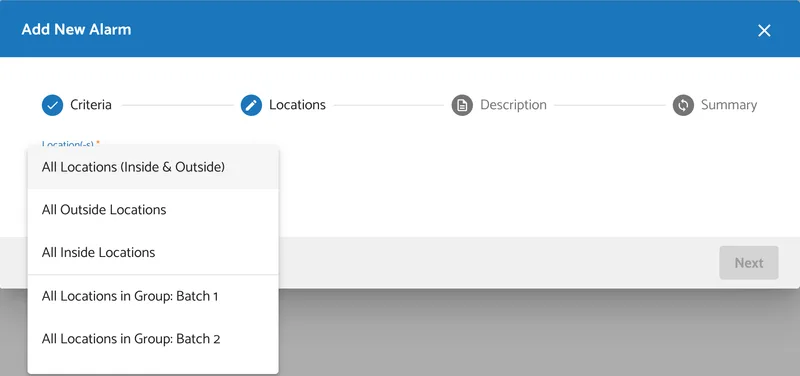
You can choose options such as:
- All locations
- All indoor locations
- All outdoor locations
- All locations in a specific group
- A specific location
Finally, add a clear Title and Description for the alarm, review the summary and click Finish.
Subscribe to an Alarm
Creating an alarm does not automatically mean every user will receive notifications. Each user can choose which alarms they want to subscribe to.
- Click your username in the dashboard menu.
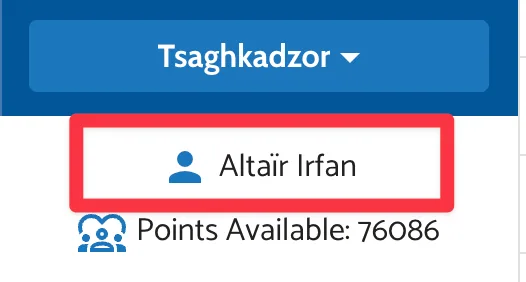
- This opens your user profile. You can also go directly to:
https://app.airgradient.com/settings/user
Open the Subscribe to Alarms tab.
Select the alarms you want to receive notifications for.
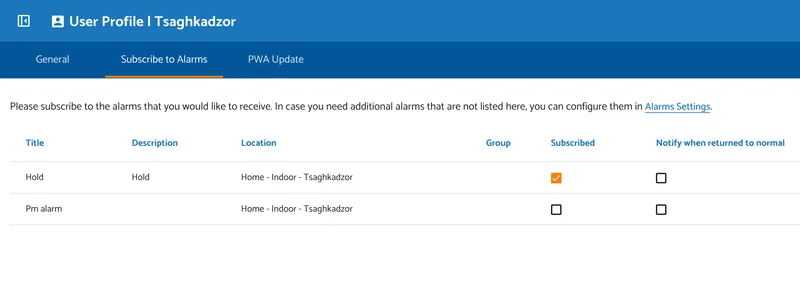
- Optional: enable Notify when returned to normal if you also want to receive an email when the alarm condition is no longer active.
Example Use Case: Site-Specific Notifications
If you manage several sites, you can create alarms for each location or location group. Then, each site manager can subscribe only to the alarms relevant to their own site.
For example:
- Site A manager subscribes only to alarms for Site A.
- Site B manager subscribes only to alarms for Site B.
- A regional manager subscribes to alarms for multiple sites or groups.
This helps prevent managers from receiving alerts for locations they are not responsible for.
Recommended Starting Points
Typical starting alarms can be:
| Parameter | Example Threshold |
|---|---|
| PM2.5 | Greater than or equal to 15 µg/m³ |
| CO2 | Greater than or equal to 1000 ppm |
You can also create "returned to good air" style alerts by reversing the operator, for example:
- PM2.5 less than or equal to 35 µg/m³
- CO2 less than or equal to 800 ppm
Use multiple alarms if you want to cover both caution and safe ranges.
Notes
- The selected measure and location scope cannot be changed when editing an existing alarm. If you need to change either of these, delete the alarm and create a new one with the correct settings.