How to Create and Use Public Display Links
How to Create and Use Public Display Links
The AirGradient dashboard allows you to create public display links that show air quality data from your selected locations.
These displays can be opened on almost any device with a browser, such as a tablet, TV, smart display, or computer. They can also be embedded into your own website.
This is useful if you want to show live air quality data in a public space, classroom, office, community center, school, or on a public web page. Public displays can show selected air quality parameters such as PM2.5, CO2, temperature, humidity and other values depending on the monitor type and available data.
What Public Displays Can Be Used For
Public displays can be used to:
- Show air quality data on a public screen.
- Share live data with a school, office, community, or organization.
- Embed air quality data into a website.
- Display data from one or multiple locations.
- Show average values across indoor or outdoor monitors.
- Create QR codes so people can quickly open the display on their own device.
The display is accessed through a public URL. Anyone with this link can view the display, so only include locations and data that you are comfortable sharing publicly.
Creating a Public Display or Website Widget
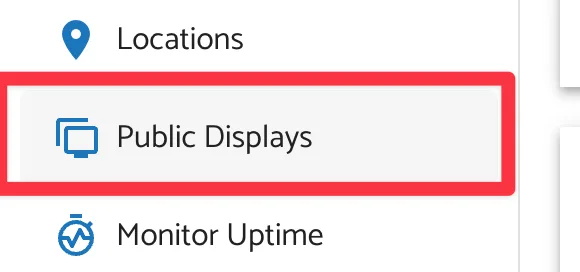
To create a new public display link, open the AirGradient dashboard and go to the sidebar menu. From the sidebar, select Public Displays
Step 1: Add a New Display
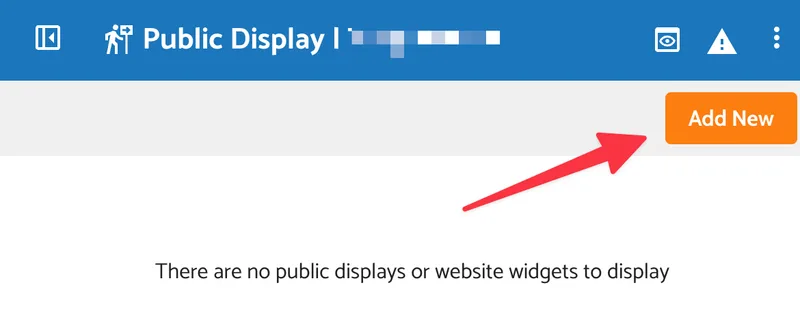
In the Public Displays section, click Add New.
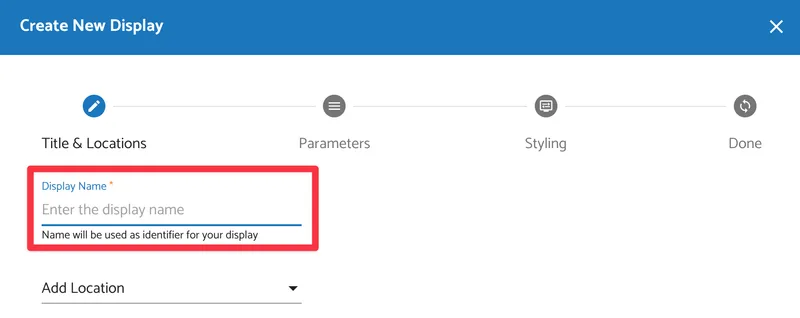
You will be asked to enter a display name.
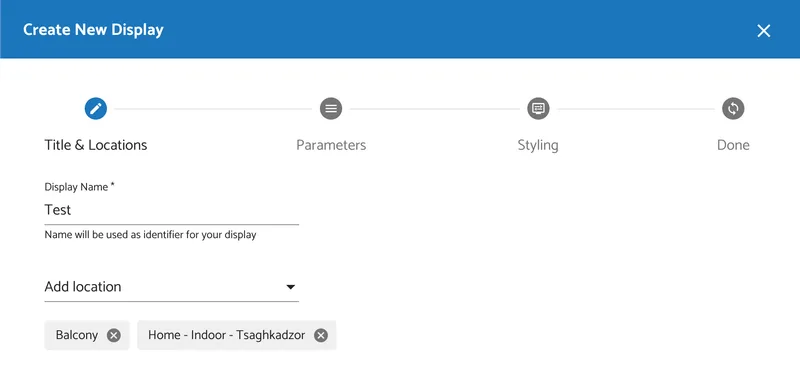
Next, choose which locations should appear on the display.
You can select one or multiple locations. You can also choose whether to display average values, such as averages for all outdoor locations or all indoor locations, depending on your setup.
After selecting the locations, continue to the next step by clicking on Create.
Step 2: Choose the Parameters to Display
Next, choose the air quality parameters you want to show on the display.
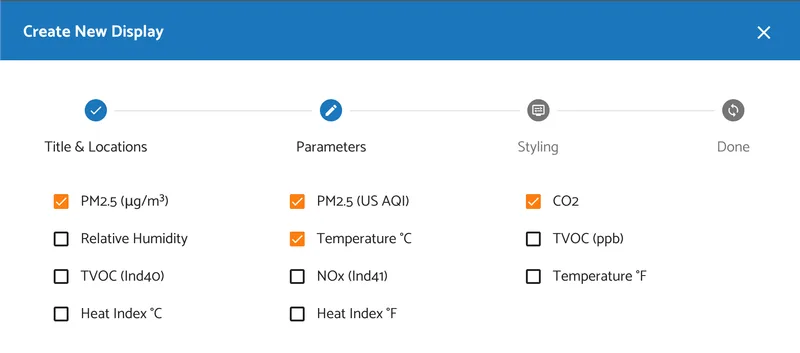
Available parameters depend on the monitor model and the data available for the selected locations.
Select only the parameters that are relevant for your audience. For public screens, it is usually better to keep the display simple and easy to read. After selecting the parameters, continue to the next step.
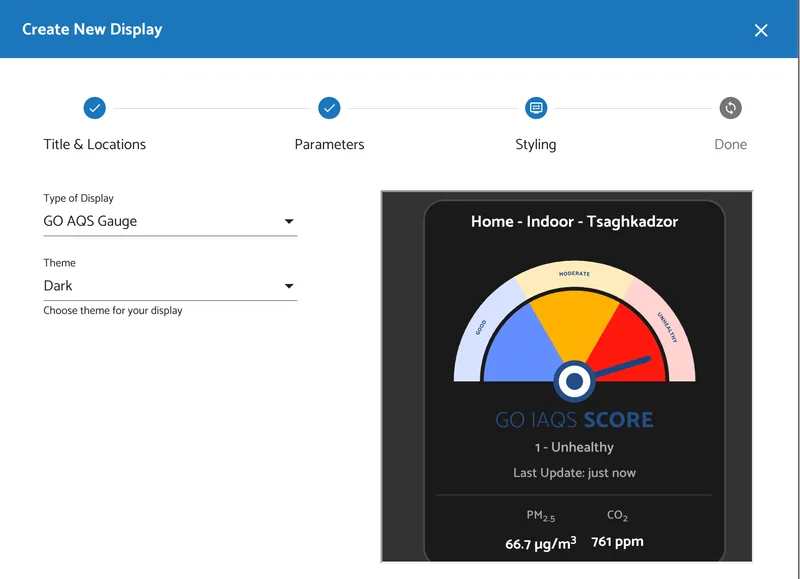
Step 3: Choose Styling
Next, choose how the public display should look. You can select the display type, that you want to modify from the following options:
- Classic
- Charts
- GO AQS Gauge
- GO AQS Status
More about GO AQS: GO IAQS Score Simulator
You can also choose a theme.
Available styling options include light and dark themes. You can also choose a custom theme if you want more control over the appearance of the display.
Adjust the styling until the display matches your intended use.
There is a preview on the right hand side:
Step 4: Finish and Copy the Link
Once the display settings are complete, click Next.
The dashboard will generate public links for the display.
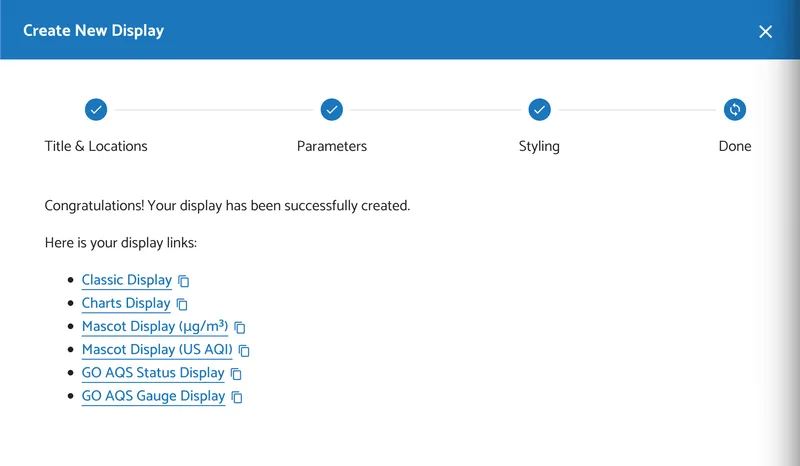
You can copy the links and open them on any device with a browser.
The best option depends on how you want the data to be presented. For example, a classic display is useful for showing current values clearly, while chart-based views are better if you want to show trends over time.
The display settings are saved in your dashboard account, but the link itself is public. Anyone with the URL can access the display.
Managing Existing Displays
You can return to Public Displays at any time to manage your displays.
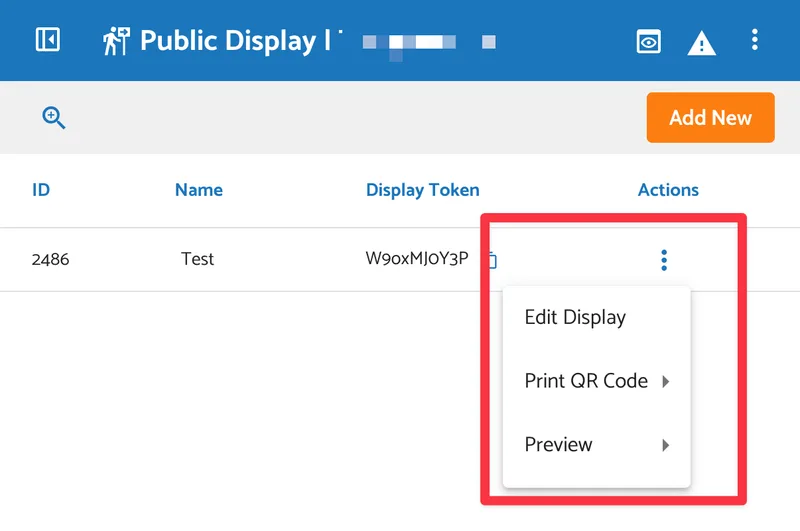
From the Actions menu, you can:
- Edit the display. The Edit Display option allows you to update the display without creating a new one.
- Change the selected locations.
- Change the displayed parameters.
- Update the styling or display type.
- Preview the display.
- Copy the public link.
- Print the link as a QR code.
- Delete the display.
Printing a QR Code
If you want people to open the public display on their own phone or tablet, you can create a QR code.
To do this, open the Actions menu for the display and select Print QR Code.
This creates a printable QR code linked to the public display URL. Users can scan the QR code to view the current air quality information on their own device.
This is useful for schools, offices, reception areas, public buildings, workshops, and community monitoring projects.
Important Notes
Public displays are accessible to anyone with the link.
Only include locations and data that you are comfortable sharing publicly. The display will update based on the latest data received by the selected monitors.
If a monitor is offline or not reporting data, the display may show outdated or missing values for that location.
If you cannot access the Public Displays option, check your dashboard permissions.