How to Find the Firmware Version of Your AirGradient Monitor
How to Find the Firmware Version of Your AirGradient Monitor
There are several ways to check the firmware version of your AirGradient monitor.
Option 1: From the Dashboard
- Open the AirGradient Dashboard
- Go to Hardware
- All registered monitors are listed there
- The firmware version is shown for each monitor
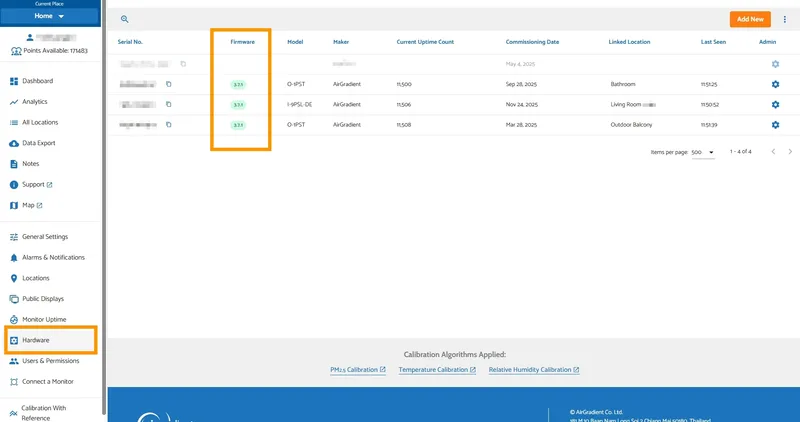
You can also find the firmware version this way:
- Go to Dashboard
- Find the monitor you want to check
- Click the Admin (gear) icon
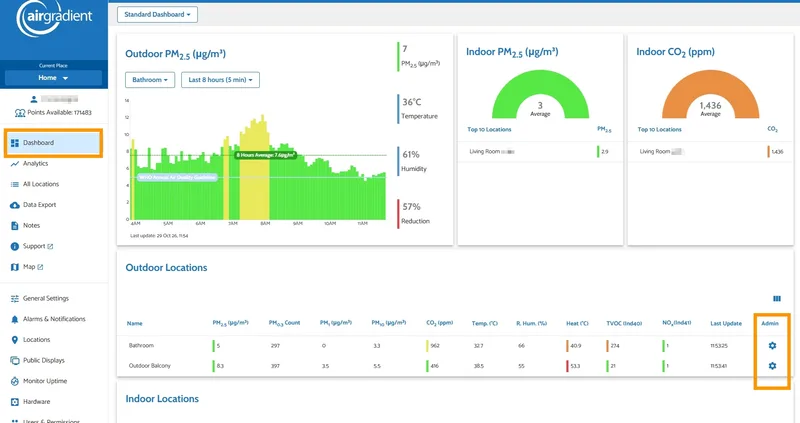
- Look under Monitor Information
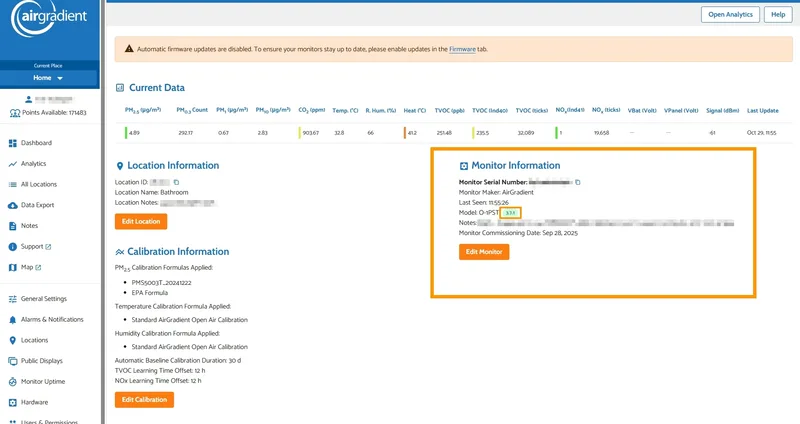
You’ll see the current firmware version there.
Option 2: Using the Local API (Advanced)
If your monitor is connected to your local network, you can also check the firmware version through the monitor’s built-in local API.
Use this address in your browser:
http://airgradient_<YOUR_SERIAL_NUMBER>.local/measures/current
Replace <YOUR_SERIAL_NUMBER> with your own monitor’s serial number.
Example:
http://airgradient_ecda3b1eaaaf.local/measures/current
You’ll receive a JSON response like this:
{
  "pm01": 69.67,
  "pm02": 112.83,
  "pm10": 116.5,
  "pm01Standard": 104.83,
  "pm02Standard": 170,
  "pm10Standard": 175.33,
  "pm003Count": 5643,
  "pm005Count": 5151.17,
  "pm01Count": 1112,
  "pm02Count": 101.33,
  "pm50Count": 4.33,
  "pm10Count": 1.67,
  "pm02Compensated": 90.18,
  "atmp": 22.28,
  "atmpCompensated": 22.28,
  "rhum": 49.39,
  "rhumCompensated": 49.39,
  "rco2": 852,
  "tvocIndex": 226,
  "tvocRaw": 32009.5,
  "noxIndex": 2,
  "noxRaw": 15909.92,
  "boot": 3177,
  "bootCount": 3177,
  "wifi": -38,
  "ledMode": "co2",
  "serialno": "",
  "firmware": "3.6.2",
  "model": "I-9PSL"
}
The value shown under firmware is your installed version.