Connect AirGradient Go to WiFi
Connect AirGradient Go to WiFi
When WiFi is used
AirGradient Go uses WiFi in Stationary mode.
Portable mode uses Bluetooth for the phone connection. Offline mode does not use active Bluetooth or WiFi data streaming.
For mode details and steps to change modes, see AirGradient Go: Operating Modes.
Before you start
Before connecting to WiFi:
- You can configure WiFi from the device itself and from a smartphone via the app (app support for Stationary Mode Wi-Fi is coming soon).
Pair AirGradient Go with the app if you want to configure WiFi details from your phone. See: Pair AirGradient Go With the AirGradient App (app support for Stationary Mode Wi-Fi is coming soon)
- Keep the monitor near the WiFi network you want to use.
You can choose to setup WiFi via the app or without it. Depending how to you want to proceed follow the appropriate steps below:
Setup WiFi without the app (Recommended as of 2026-07-13)
Switch to Stationary mode
- Unlock the monitor.
- Press Menu/Select to open the main menu.
- Use Up or Down to select Settings.
- Select Mode.
- Select Stationary.
- Press Menu/Select to confirm.
If the monitor already has saved WiFi credentials, it tries to connect with them when it enters Stationary mode.
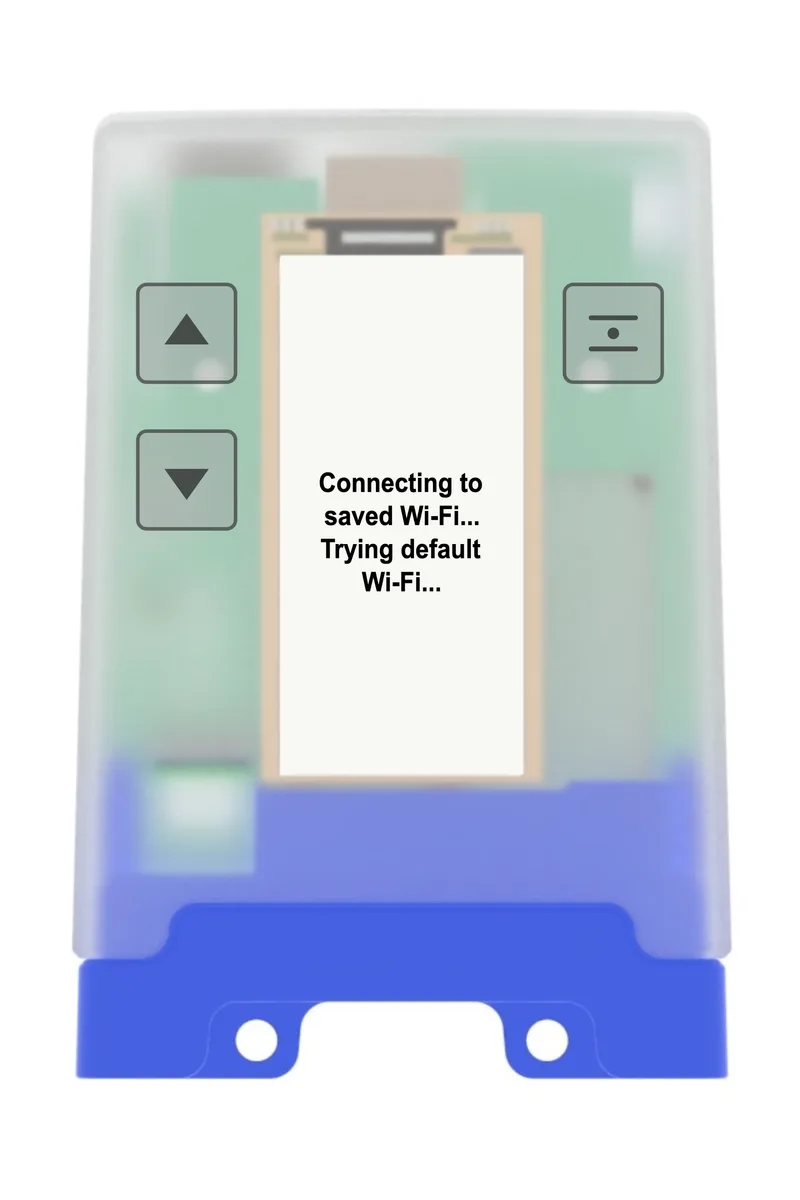
If no saved network is available, the monitor opens WiFi setup.
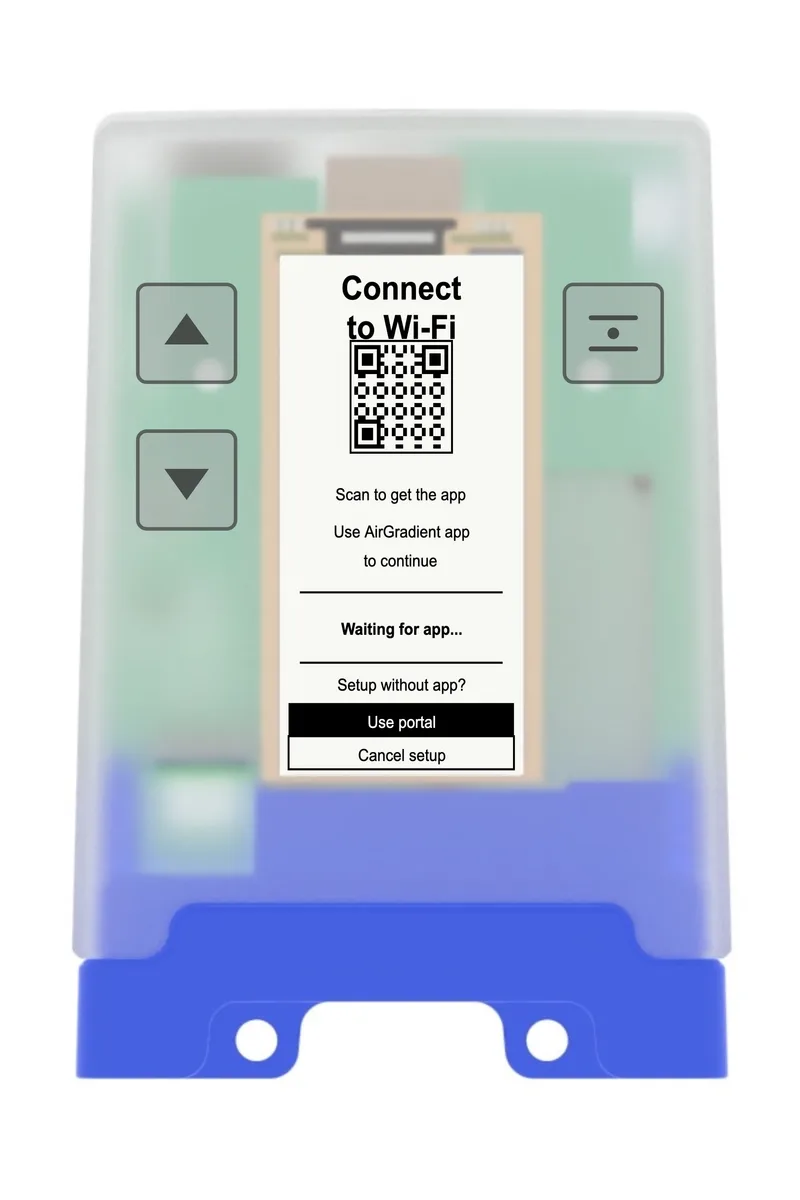
On the provisioning screen:
- select Use portal:
- on the next screen, confirm by selecting Yes
The device will start broadcasting a WiFi hotspot named:
airgradient-xxxxxxxx
xxxxxxxx is your device serial number.
The display also shows the hotspot name and the message ‘Waiting for setup’:
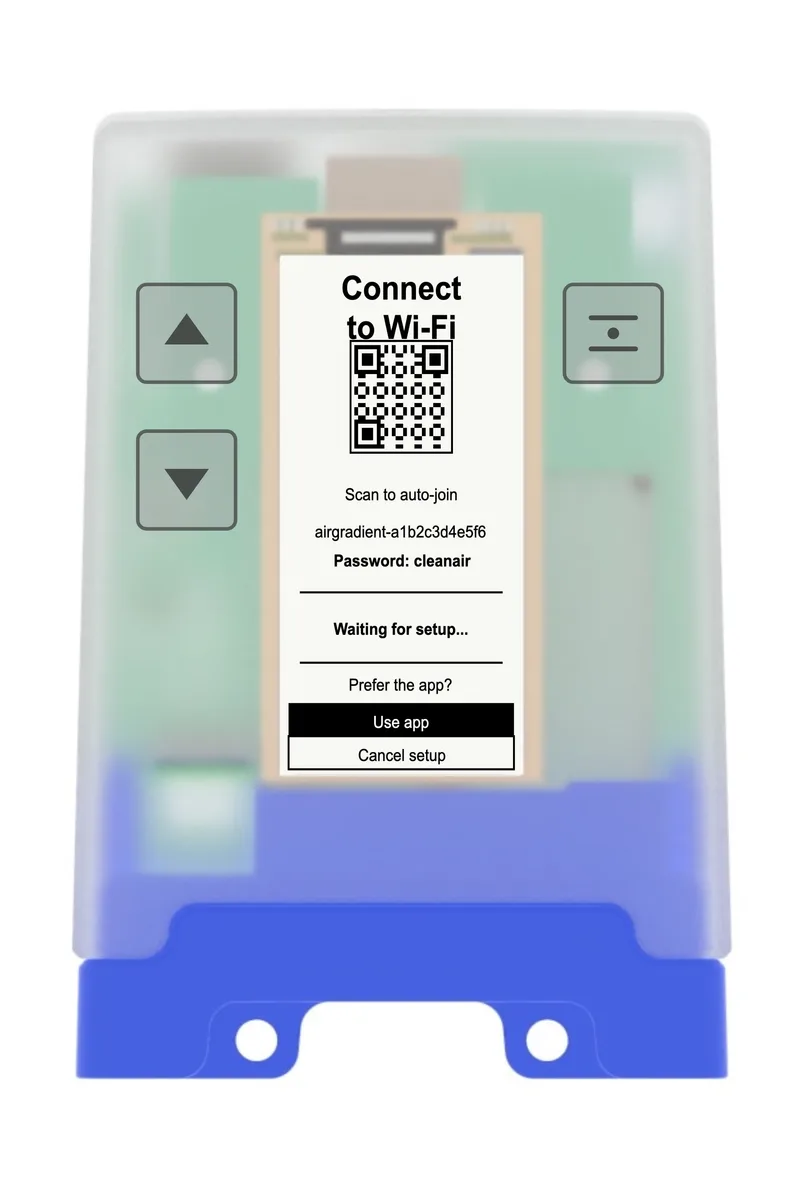
You now need to connect to this WiFi hotspot to configure WiFi. You have two options here:
Option A: Scanning the QR code on the display
Use your smartphone to scan the QR code on the display:
Your phone will prompt you to join the WiFi hotspot:
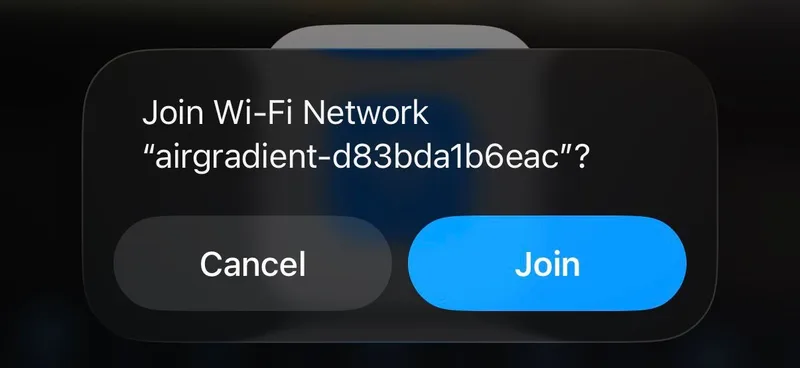
- Tap Join.
(This skips the step of manually locating the hotspot using Option B below.)
Option B: Join the Hotspot Manually
Open your phone, tablet, or laptop WiFi settings.
- Look for and select the network:
airgradient-xxxxxxxx
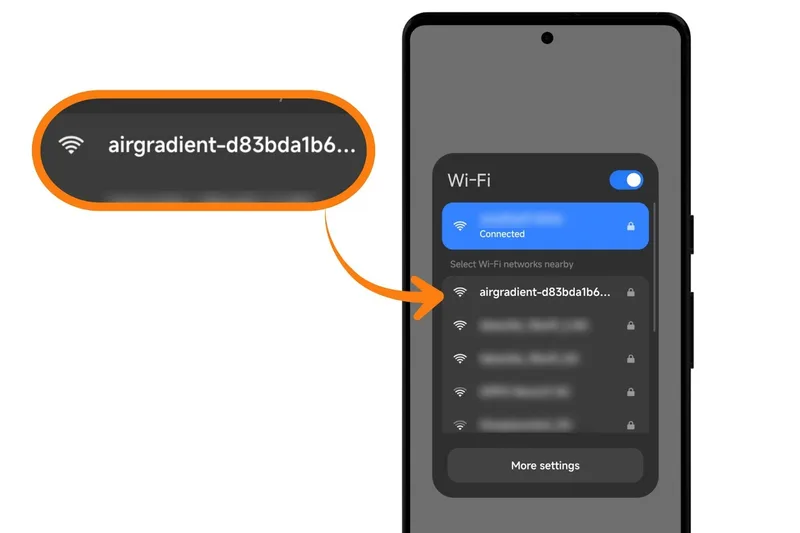
- Enter the password:
cleanair
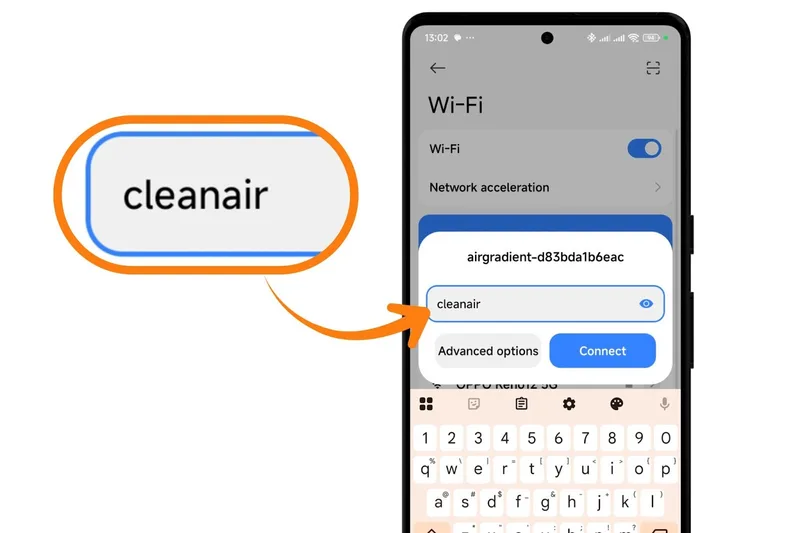
Once connected to the hotspot, the WiFi Manager should open automatically within ~10 seconds.
If it doesn’t:
Open a browser.
Go to: 192.168.4.1 (Enter it in the address bar, not a search engine.)
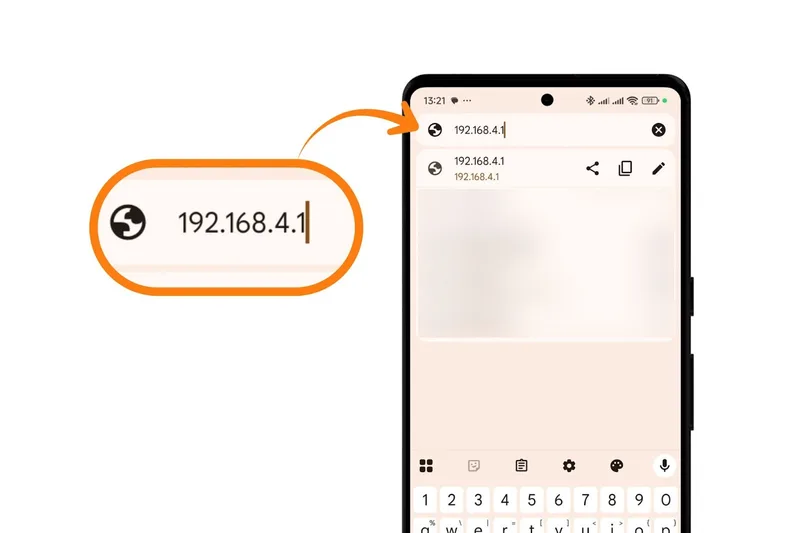
- Make sure you are still connected to the device hotspot. See the iOS & Android notes at the bottom of this article if the phone switches away from the hotspot or
192.168.4.1does not load.
“No Internet Connection” warnings from your phone: Totally normal. Stay connected to the hotspot until the process completes.
Configure WiFi settings on the WiFi manager page
On the WiFi Manager page:
Tap Scan to scan for WiFi networks
Select your WiFi network
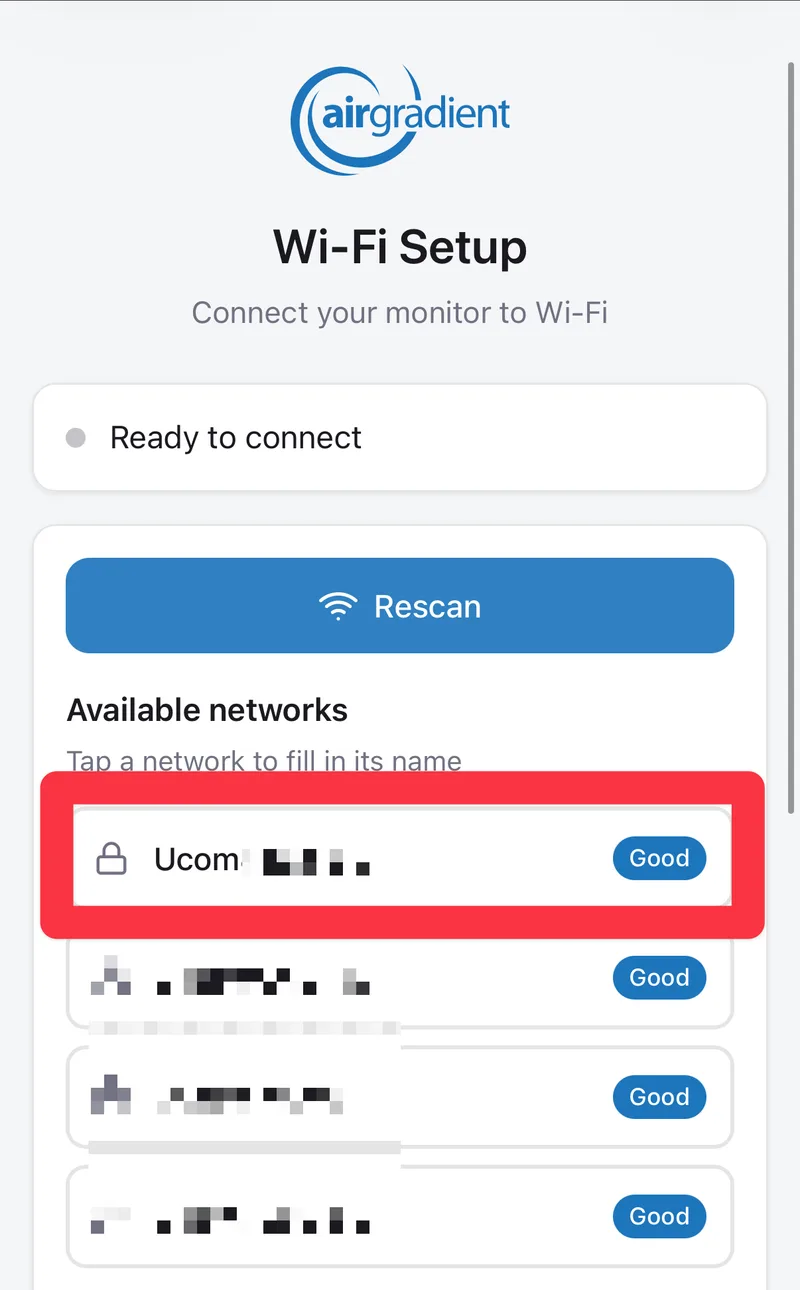
For hidden networks, enter the SSID & password manually.
- Enter your WiFi password
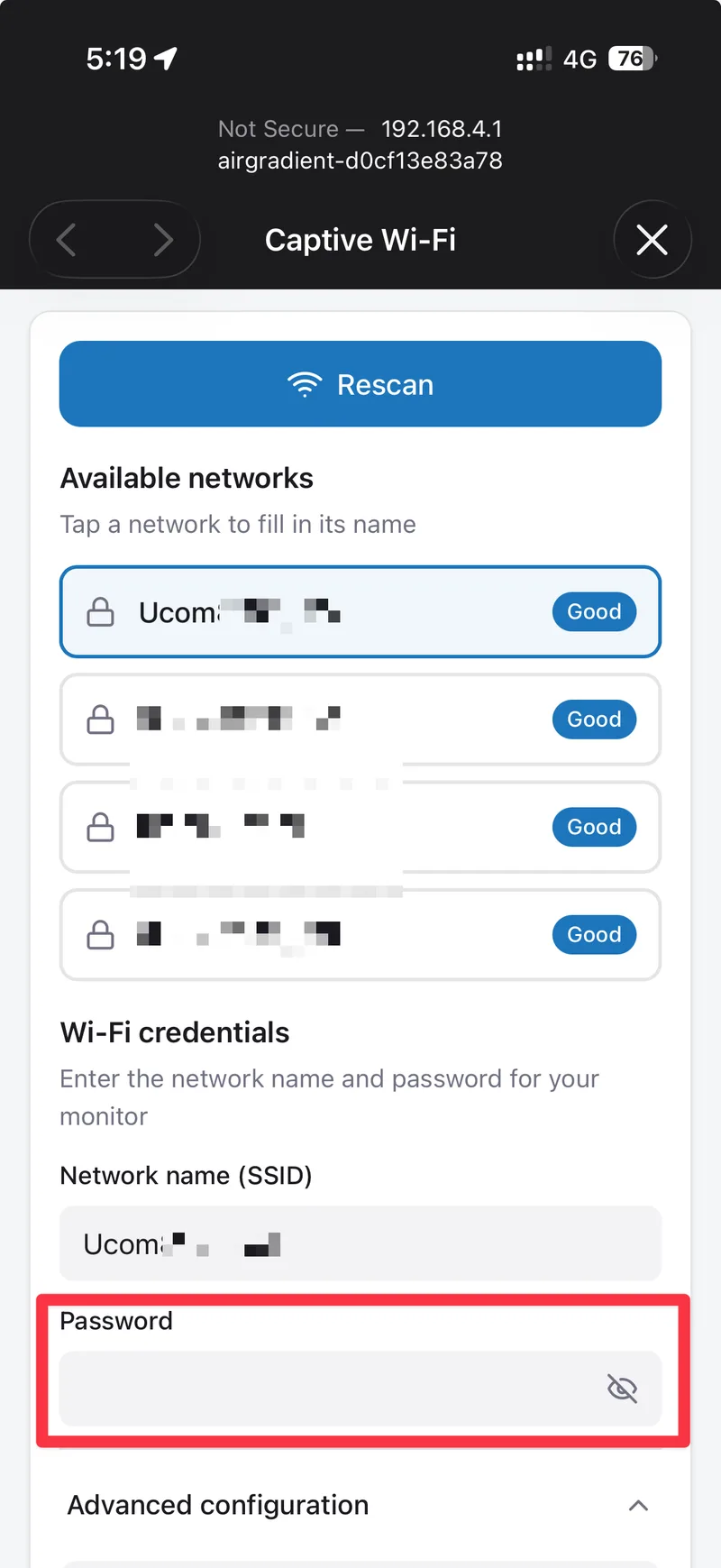
(Enter the password for your WiFi network. Do not enter ‘cleanair’ here—that password is only for connecting to the device hotspot.)
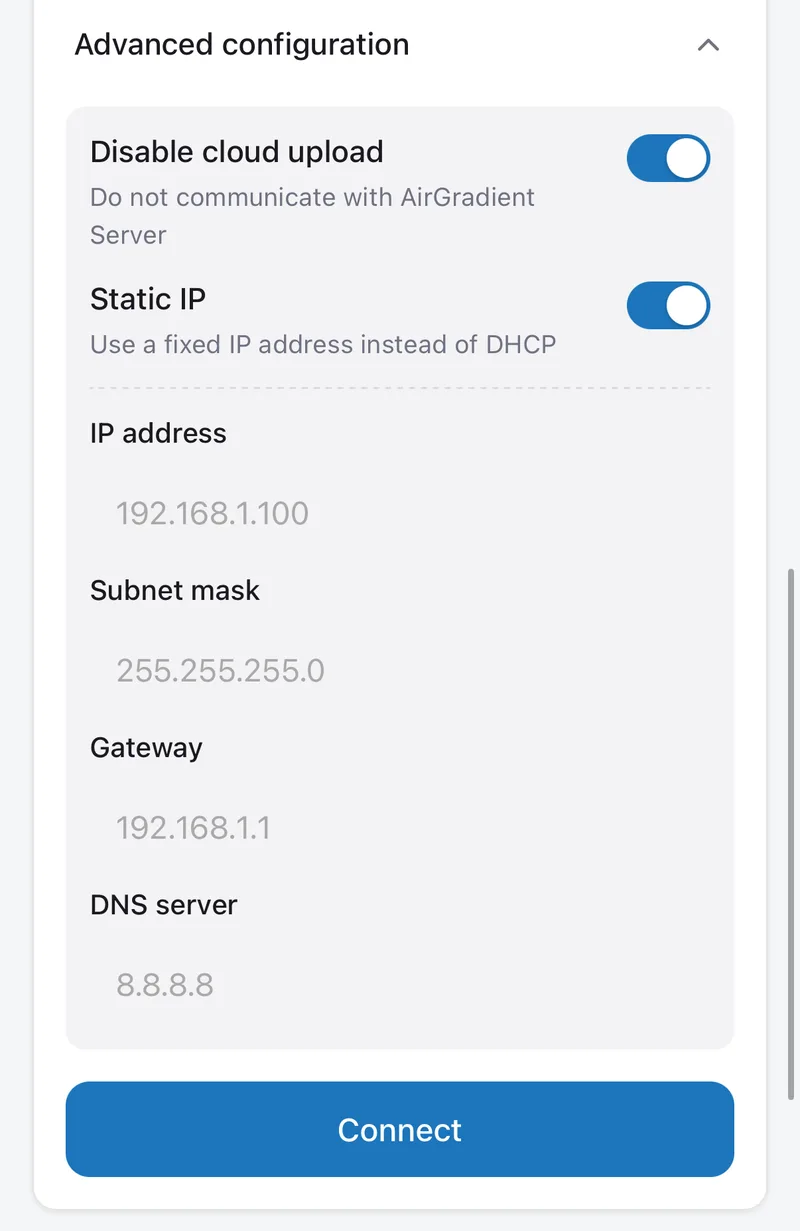
You can use Advanced Configuration, to toggle "Disable cloud upload". Disabling cloud upload means readings will not be sent to the AirGradient Dashboard.
Toggle "Static IP" to force the device to use a fixed IP address instead of DHCP.
- Tap Connect
Credential Saving & Expected Behavior
If connection is successful, you'll see:
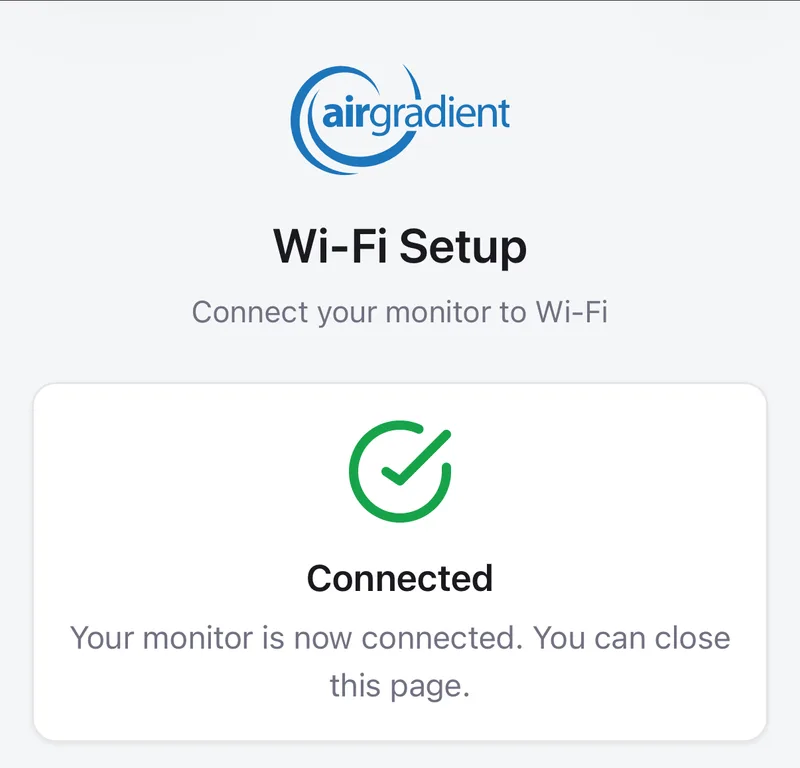
The window should close automatically.
The WiFi-connected icon confirms that the monitor is connected to WiFi. For an explanation of the connection and status icons, see AirGradient Go: Display Icons and Status Indicators.
Next Steps After Connecting
Your AirGradient Go will now connect to WiFi and start transmitting data.
If you want to view the readings in the AirGradient Dashboard, complete the dashboard onboarding.
iOS notes and troubleshoot
Some iPhones may try to leave the device hotspot, reconnect to another WiFi network, or use mobile data instead because the AirGradient device hotspot does not provide internet access.
If the WiFi Manager does not open, or 192.168.4.1 does not load:
Stay connected to the
airgradient-xxxxxxxxxxxxhotspot even if iOS shows “No Internet Connection”.Temporarily turn off Cellular Data: Settings → Cellular → Cellular Data → Off.
If your iPhone keeps reconnecting to your normal WiFi network, tap the info icon next to that WiFi network and temporarily turn off Auto-Join.
Reconnect to the AirGradient hotspot and continue setup.
After setup is complete, turn Cellular Data back on and re-enable Auto-Join for your normal WiFi network if you turned it off.
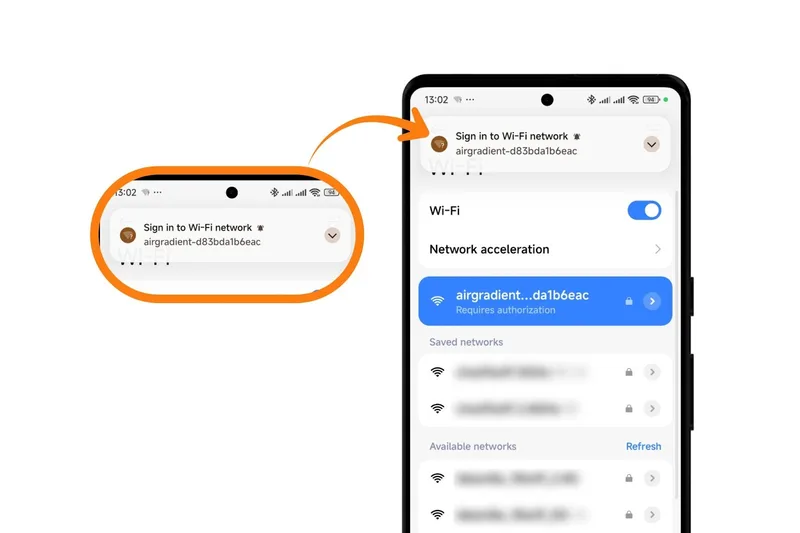
Android notes and troubleshoot
Android 11/12 may show Manage router → tap it.
Some versions require tapping “Tap here to sign in to network” to open the WiFi Manager.
Questions or feedback?
If anything on this page is unclear, or if you have suggestions for how we can improve this guide, please leave a comment below.
You can also contact us through our support form here: Contact Support