AirGradient Go: Display Icons and Status Indicators
AirGradient Go: Display Icons and Status Indicators
Battery icons
The battery icon shows the monitor's approximate battery level. The percentage ranges are grouped as follows:
| Icon | Battery level | What it means |
|---|---|---|
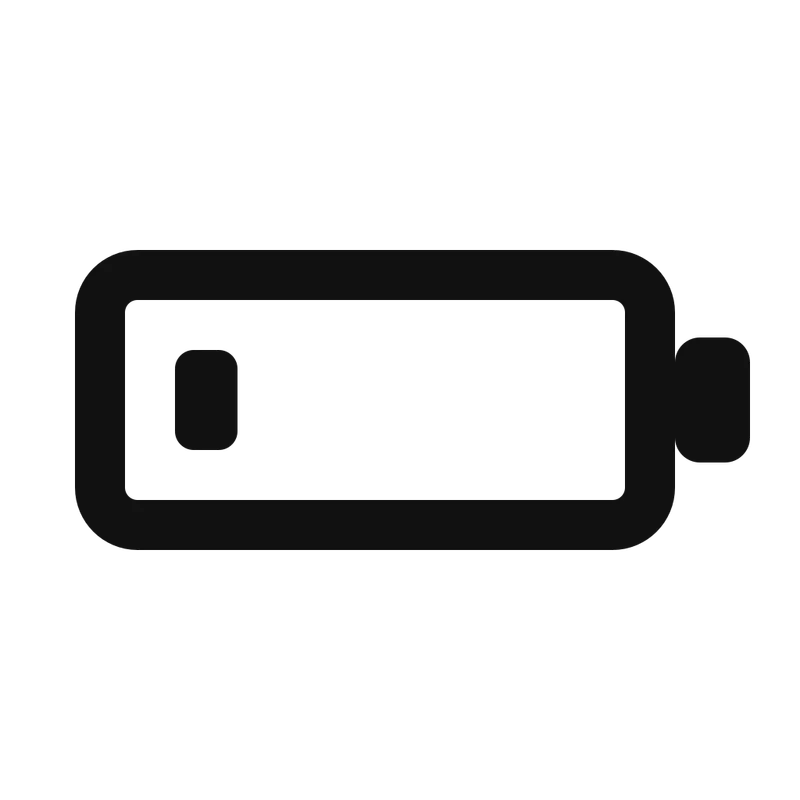 |
0-10% | The battery is very low. Connect the monitor to USB-C power. |
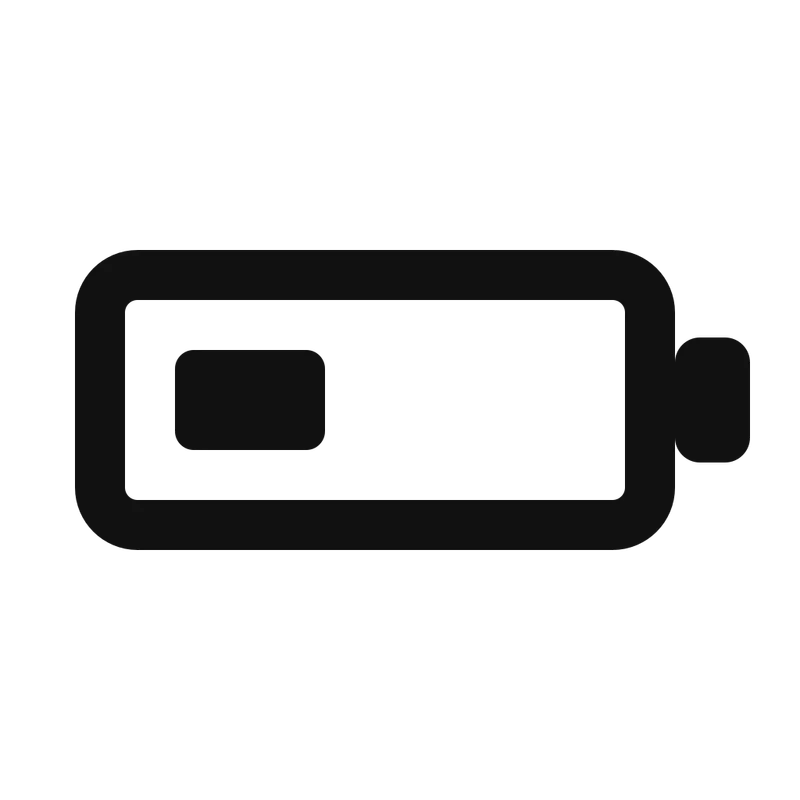 |
10-30% | The battery is low. |
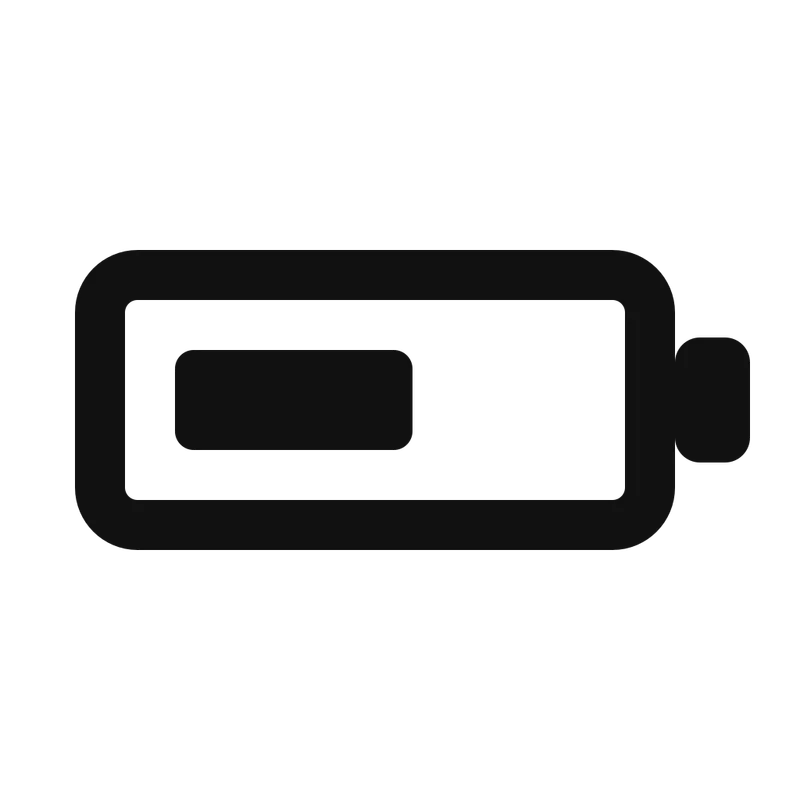 |
30-50% | The battery is between roughly one-third and one-half full. |
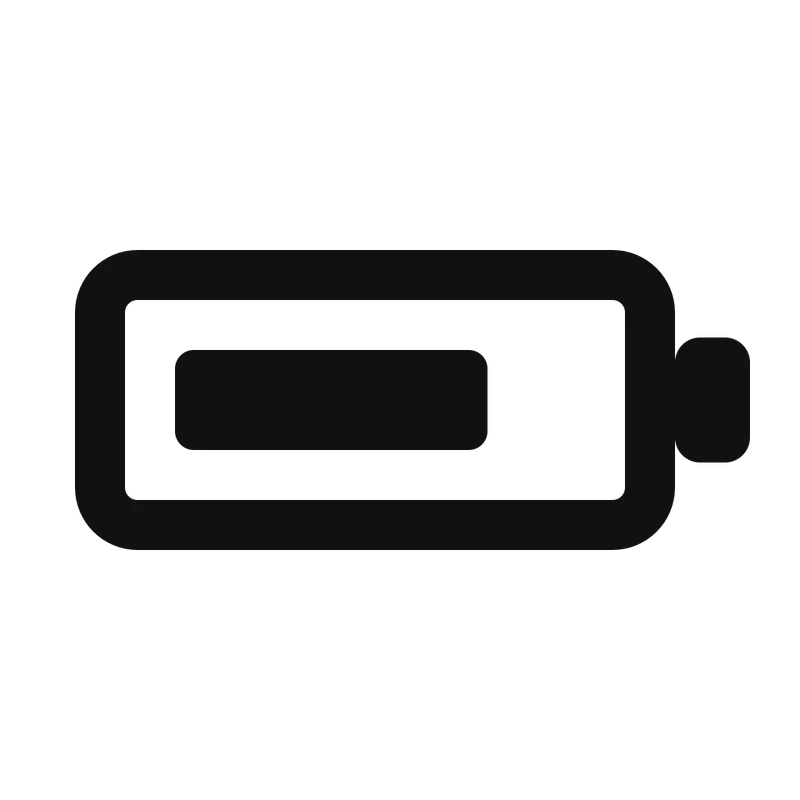 |
50-70% | The battery is more than half full. |
 |
70-95% | The battery is high but not in the highest range. |
 |
95-100% | The battery is near full or full. |
 |
Charging | USB power is connected and the battery is charging. |
 |
Plugged in | USB power is connected and the battery is full or nearly full. |
At the boundary between two ranges, the monitor uses the lower range. For example, exactly 30% uses the 10-30% icon, and exactly 95% uses the 70-95% icon.
For charging and battery information, see Charge and Power Off AirGradient Go and AirGradient Go: Battery Life and Battery Care.
Connection and status icons
| Icon | Status | What it means |
|---|---|---|
 |
Bluetooth connected | The monitor is connected over Bluetooth. |
 |
Bluetooth not connected | Bluetooth is available for the current mode (portable), but the monitor is not connected. |
 |
WiFi connected | The monitor is connected to WiFi. |
 |
WiFi not connected | Stationary mode is enabled, but the monitor is not connected to a WiFi network. |
 |
GPS fix | The monitor has a usable GPS position. |
Lock and unlock status
When the monitor is locked, the front Up, Down, and Menu/Select buttons do not navigate menus.
To unlock the monitor:
- Press the On/Off/Unlock button briefly.
- Use the front buttons after the unlocked status appears.
To lock the monitor again, press the On/Off/Unlock button briefly.
For button and menu details, see AirGradient Go: Buttons and Navigation.
| Icon | Status | What it means |
|---|---|---|
 |
Locked | The front Up, Down, and Menu/Select buttons are locked. |
 |
Unlocked | The front touch buttons can be used. |
Tracking status
When route tracking is active, the display shows the small circular tracking dot. The tracking dot means that a tracking session is active. It does not indicate whether GPS coordinates are being collected. GPS data depends on the selected GPS Mode and whether a GPS fix is available.
For route details and steps to start or stop tracking, see AirGradient Go: Route Tracking and GPS.
| Icon | Status | What it means |
|---|---|---|
 |
Tracking active | Route tracking is active. The monitor uses a small circular dot for this status. |
Icons by operating mode
Some connection icons depend on the operating mode:
| Mode | Typical connection status |
|---|---|
| Portable | Bluetooth connection to the app |
| Stationary | WiFi connection |
| Offline / Airplane Mode | No active Bluetooth or WiFi data stream |
For more detail, see AirGradient Go: Operating Modes.
GPS fix icon
The GPS fix icon appears when the monitor has a usable GPS position. It looks like a small upward caret or open triangle (/\) in the top status bar.
| Icon | Status | What it means |
|---|---|---|
|
GPS fix | The monitor has a usable GPS position. |
If the icon is not shown, the monitor does not currently have a GPS fix. The monitor does not show a separate no-fix icon. GPS reception is affected by the monitor's location, buildings, tree cover, vehicles, and the selected GPS mode.
For GPS guidance, see AirGradient Go: GPS Troubleshooting.