AirGradient Go: CO2 Readings and Calibration
AirGradient Go: CO2 Readings and Calibration
What CO2 means
CO2 is shown in parts per million, or ppm.
Indoor CO2 rises when people breathe in an enclosed space and ventilation is limited. Outdoor air is usually much lower than crowded indoor spaces, so CO2 can help you understand ventilation.
Before assuming the CO2 reading is wrong:
- Run the manual calibration procedure described below.
- Let the monitor run for a while after power-on.
- Keep the monitor away from direct breath.
- Place it where air can move freely around the monitor.
- Compare changes over time instead of reacting to one short reading.
Do not calibrate:
- while someone is breathing directly near the monitor
- in a crowded or poorly ventilated room
- immediately after moving the monitor from one environment to another
- just because a reading is temporarily higher than expected
Calibrate the CO2 sensor before first use
The CO2 sensor must be manually calibrated before you rely on its readings. If the monitor shows unusually low CO2 readings or differs significantly from another monitor, repeat the following procedure carefully.
How to manually calibrate the CO2 sensor
Step 1: Move the Go outdoors
Take the monitor to a fresh, well-ventilated outdoor area away from traffic, exhaust vents, people, and other possible sources of CO2. After moving the monitor outdoors, place it somewhere stable and wait for its readings to settle before restarting and calibrating it.
Step 2: Restart the monitor
Turn the Go completely off, then turn it back on with the On/Off/Unlock button.
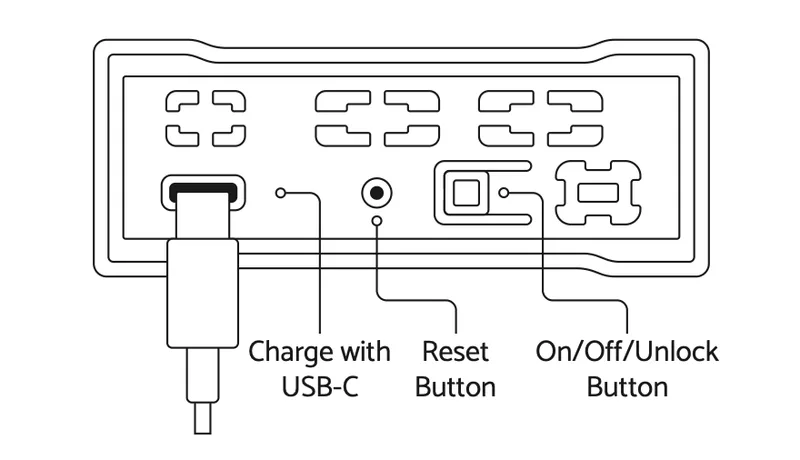
Restarting the monitor immediately before calibration helps produce more consistent results.
Step 3: Start manual CO2 calibration
You can start calibration from the AirGradient app or directly from the monitor.
Using the app is preferable because breathing close to the monitor while operating its buttons can affect the CO2 concentration around the sensor.
In the app, open the connected monitor, select Device Settings, and then select Request CO2 Calibration.
To start calibration directly from the monitor:
- Unlock the monitor.
- Press Menu/Select to open the main menu.
- Use Up or Down to select Settings.
- Press Menu/Select.
- Select CO2: Calibrate.
- Confirm the action.
If you operate the monitor directly, keep it away from your face and avoid standing over it during calibration.
Step 4: Wait for calibration to finish
This happens instantly.
Immediately after calibration, the reading should be close to the sensor’s calibration reference of approximately 400 ppm. This reference value should not be interpreted as a measurement of the actual outdoor CO2 concentration at your location.
Only after the procedure is done, bring the monitor indoors and compare readings.
If you have another CO2 monitor, place the devices next to each other and allow their readings to stabilize for a few hours before comparing them.
Compare the overall trend rather than expecting every individual reading to match. Some difference between devices is normal because different monitors can use different sensors and response times.
Related articles
Questions or feedback?
If anything on this page is unclear, or if you have suggestions for how we can improve this guide, please leave a comment below.
You can also contact us through our support form here: Contact Support