AirGradient Go: GPS Troubleshooting
AirGradient Go: GPS Troubleshooting
To log location coordinates, the Go first needs a GPS fix.
For normal GPS modes, starting and stopping tracking, and viewing recorded routes, see AirGradient Go: Route Tracking and GPS.
What a GPS fix means
A GPS fix means the Go has a usable position from GPS satellites.
The display shows the GPS fix icon when the device has a GPS fix:
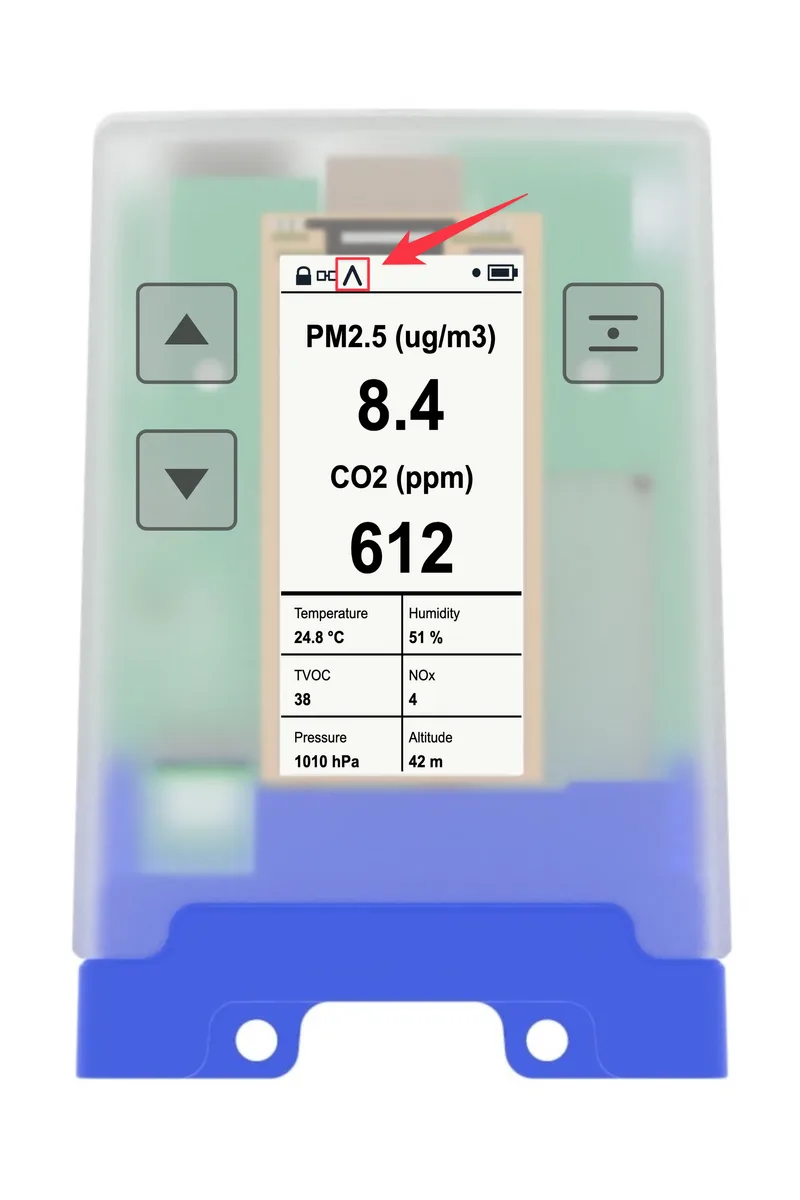
For a complete explanation of the GPS, tracking, and connection icons, see AirGradient Go: Display Icons and Status Indicators.
Without a fix, the Go may still record sensor readings, but route location data will be missing.
Check GPS mode
AirGradient Go has three GPS modes:
| GPS mode | What it does |
|---|---|
| Always Off | Keeps GPS off. No GPS coordinates are intentionally collected. |
| On When Tracking | Uses GPS while route tracking is active. |
| Always On | Keeps GPS available even when you are not actively tracking. |
To change GPS mode:
- Unlock the monitor.
- Open Settings.
- Select GPS Mode.
- Choose the GPS mode you want.
- Press Menu/Select to confirm.
If there is no GPS fix
Try the following:
- Move outdoors.
- Avoid being next to tall buildings, dense tree cover, or large metal structures.
- Place the monitor with a clear view of the sky.
- Wait for GPS to update.
- Confirm that GPS Mode is not set to Always Off.
- If you use On When Tracking, start route tracking and wait for a GPS fix.
GPS usually performs poorly indoors, underground, in vehicles with coated glass, or near structures that block the sky.
If route tracking has no location data
- Check that GPS Mode was On When Tracking or Always On.
- Start tracking outdoors.
- Wait until the display shows GPS fix before relying on route location.
- Stop tracking when the route is complete.
Route tracking can still save air quality measurements even when GPS has not yet produced a usable fix.
If GPS works sometimes but not always
This is usually caused by the location where the monitor is used.
Try comparing:
- outdoors with open sky
- near buildings
- inside a car
- indoors
If GPS works outdoors but not indoors, the monitor is behaving as expected for GPS reception.
Use the GPS hardware test
Note: Run this test outdoors. Indoor results are not a reliable indication of GPS performance.
AirGradient Go includes a GPS diagnostic test under Hardware Test. Use it to check whether the GPS module can receive satellites and how long it takes to get a first fix.
- Go outdoors to an open area with a clear view of the sky.
- Unlock the monitor.
- Open Settings.
- Select Hardware Test.
- Select GPS Test.
- Leave the monitor still and wait for the TTFF value. TTFF means "time to first fix".
- Note how long it takes to get the first fix. Share this time with AirGradient support if troubleshooting continues.
Questions or feedback?
If anything on this page is unclear, or if you have suggestions for how we can improve this guide, please leave a comment below.
You can also contact us through our support form here: Contact Support