AirGradient Go: Route Tracking and GPS
AirGradient Go: Route Tracking and GPS
What is Route Tracking?
Starting Tracking records sensor data on the monitor. GPS coordinates are recorded only when GPS is enabled and a GPS fix is available.
Note: If GPS Mode is set to Always Off, the GPS module remains asleep and no GPS coordinates are collected, even while tracking is active. Sensor readings continue to be recorded.
Too see what parameters the Go can record see: Technical Specifications and What AirGradient Go Measures
AirGradient Go uses an on-board GPS module to record location data.
GPS modes
GPS mode controls when the monitor uses GPS.
| GPS mode | Use this when... |
|---|---|
| Always Off | You do not want the monitor to use GPS. GPS remains off. Tracking still records sensor data, but no GPS coordinates are collected. |
| On When Tracking | You want GPS during route recording. This is the default GPS mode. |
| Always On | You want GPS available even when you are not actively recording a route. This can use more battery. |
To change GPS mode on the monitor:
- Unlock the monitor.
- Open Settings.
- Select GPS Mode.
- Choose Always Off, On When Tracking, or Always On.
- Press Menu/Select to confirm.
GPS fix
A GPS fix means the monitor has enough satellite information to determine its location. Route points include GPS coordinates only after a fix is available. Until then, AirGradient Go can still save air quality readings, but route location data may be missing or incomplete.
On the monitor display, the GPS fix icon appears in the status bar when a fix is available. It looks like a small upward triangle (/\). If you do not see this icon, wait for GPS before relying on route location data.
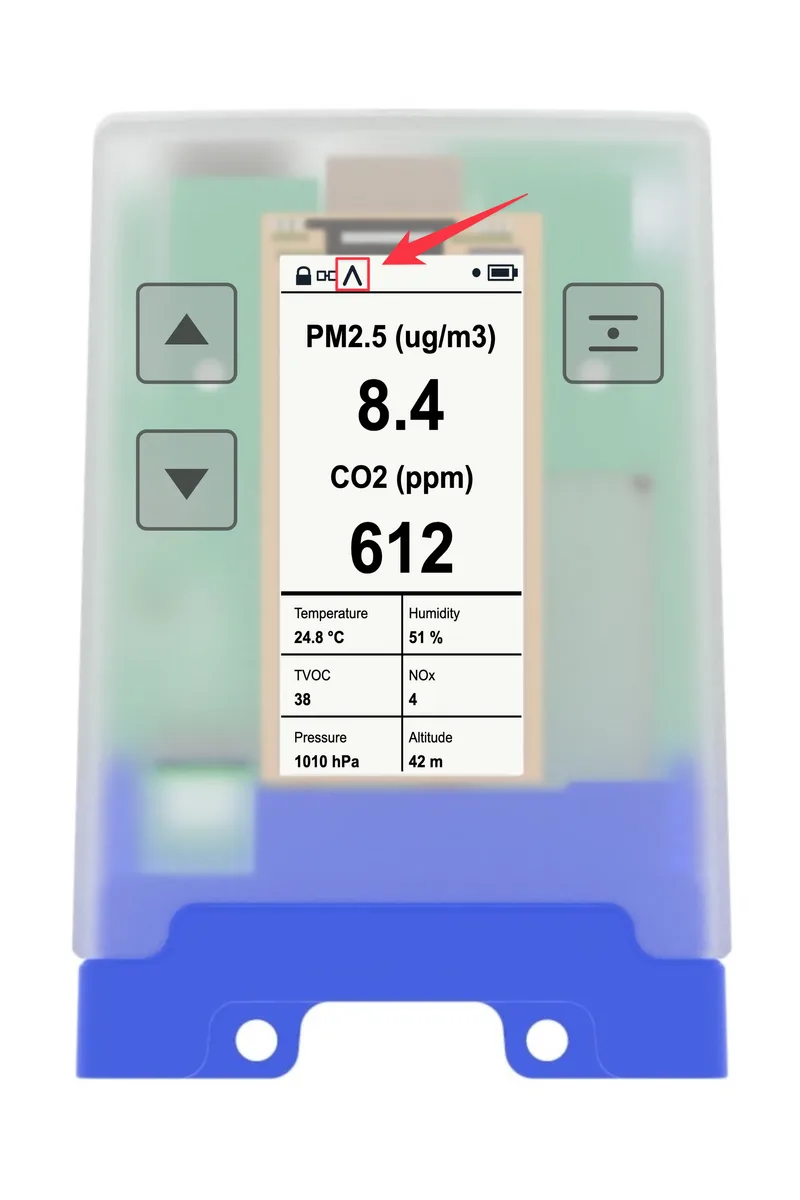
For better GPS performance:
- use route tracking outdoors
- avoid placing it deep inside a bag
- wait a few minutes after starting a route
- move away from dense buildings or covered areas if the fix does not appear
If GPS still does not get a fix, use Settings > Hardware Test > GPS outdoors in an open area with a clear view of the sky. Leave the monitor still and note the TTFF value. TTFF means time to first fix. See AirGradient Go: GPS Fix Troubleshooting.
Start/Stop route tracking on the Go
- Unlock the monitor with the On/Off/Unlock button.
- Press Menu/Select to open the main menu.
- Use Up or Down to select Start Tracking.
The monitor returns to the home screen and starts saving route data. When tracking is active, the monitor shows a small circular tracking dot. See AirGradient Go: Display Icons and Status Indicators.
When tracking is active, the same menu item changes to Stop Tracking.
Use Up or Down to select Stop Tracking.
The monitor returns to the home screen and stops saving route data.
Start/Stop route tracking from the app
Pair the Go with the app, if not already done: Pair AirGradient Go With the AirGradient App
To start a route from the AirGradient app:
- Open the AirGradient app.
- Connect to AirGradient Go.
- Open the monitor screen.
- Find the Tracking section.
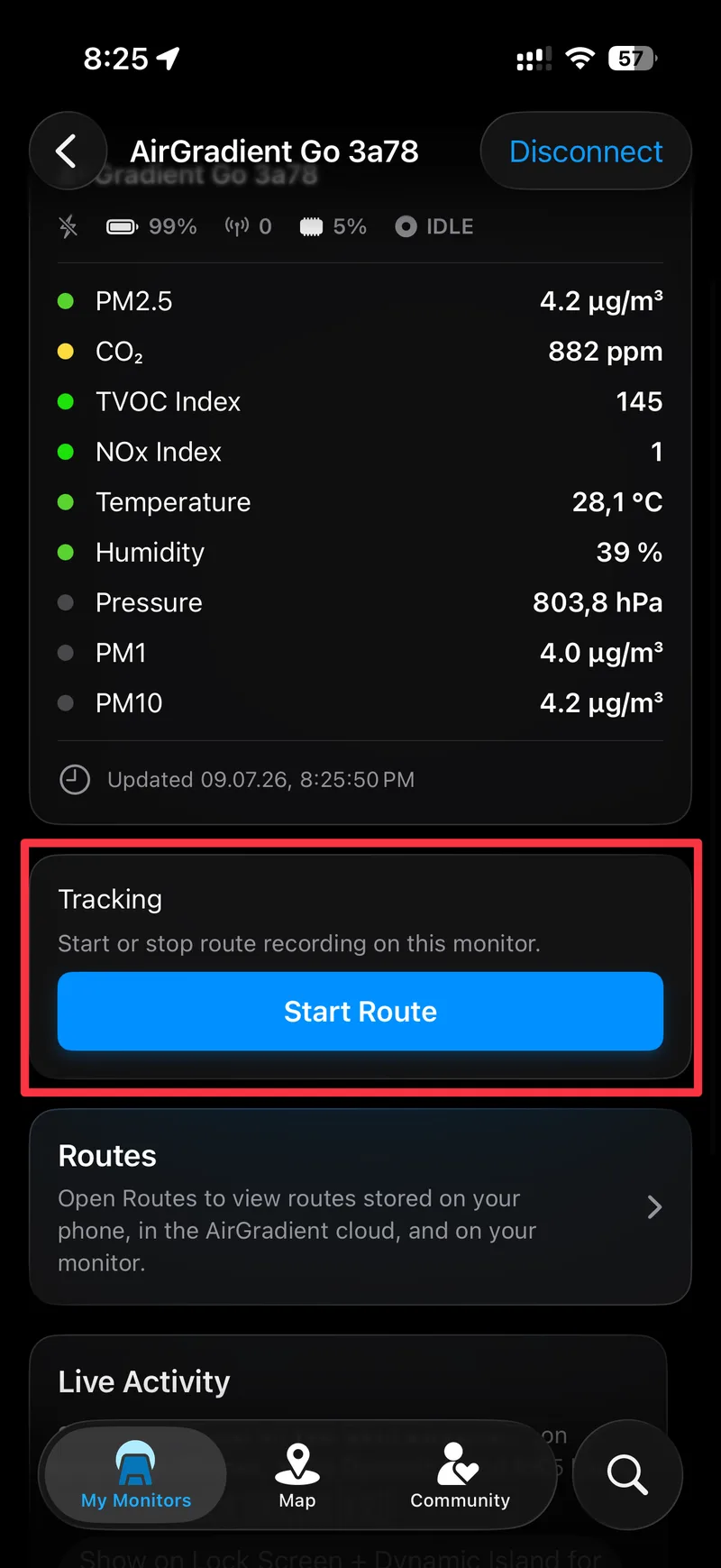
Tap Start Route.
Wait for the GPS fix
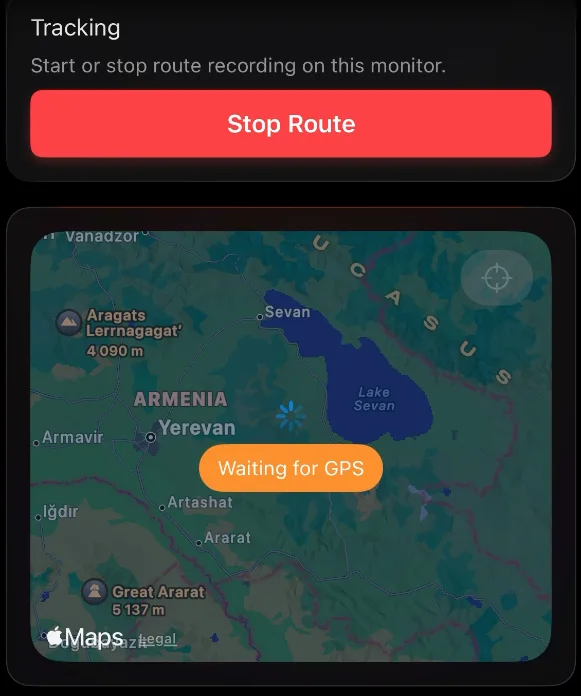
If GPS has a fix, route points include location data. If GPS does not yet have a fix, the monitor can still record sensor readings while it waits for location data.
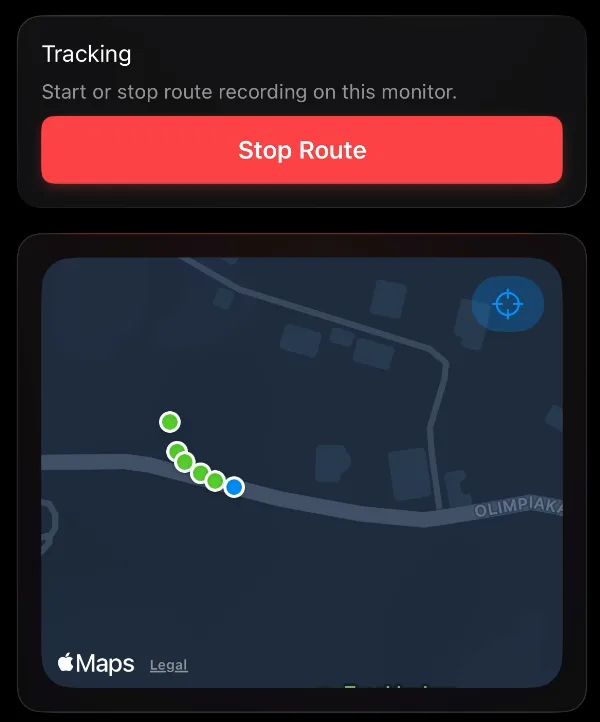
- To stop route tracking from the AirGradient app, tap Stop Route.
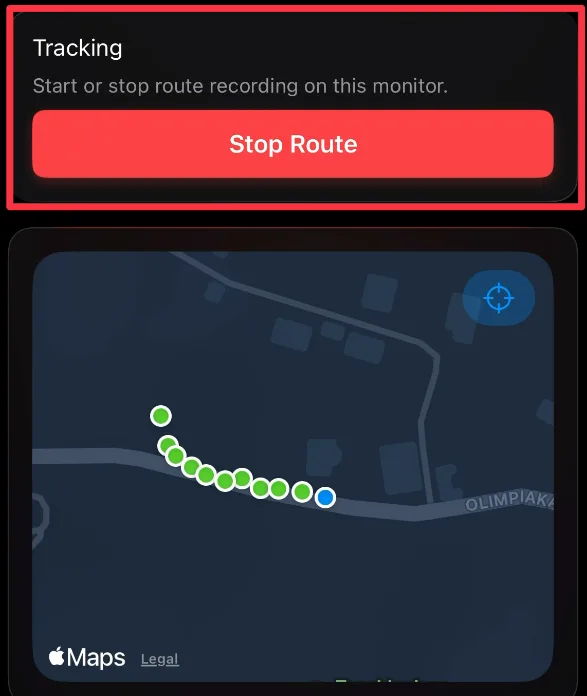
- Confirm.
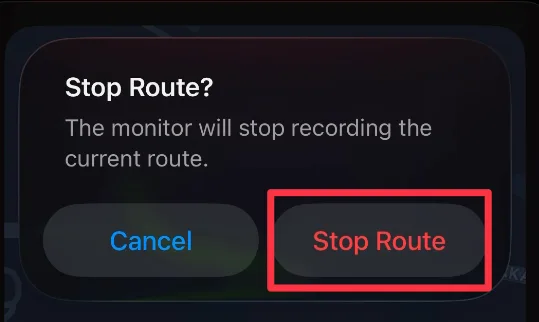
After tracking stops, the route remains stored on the monitor until it is exported, saved to phone or cleared.
View routes
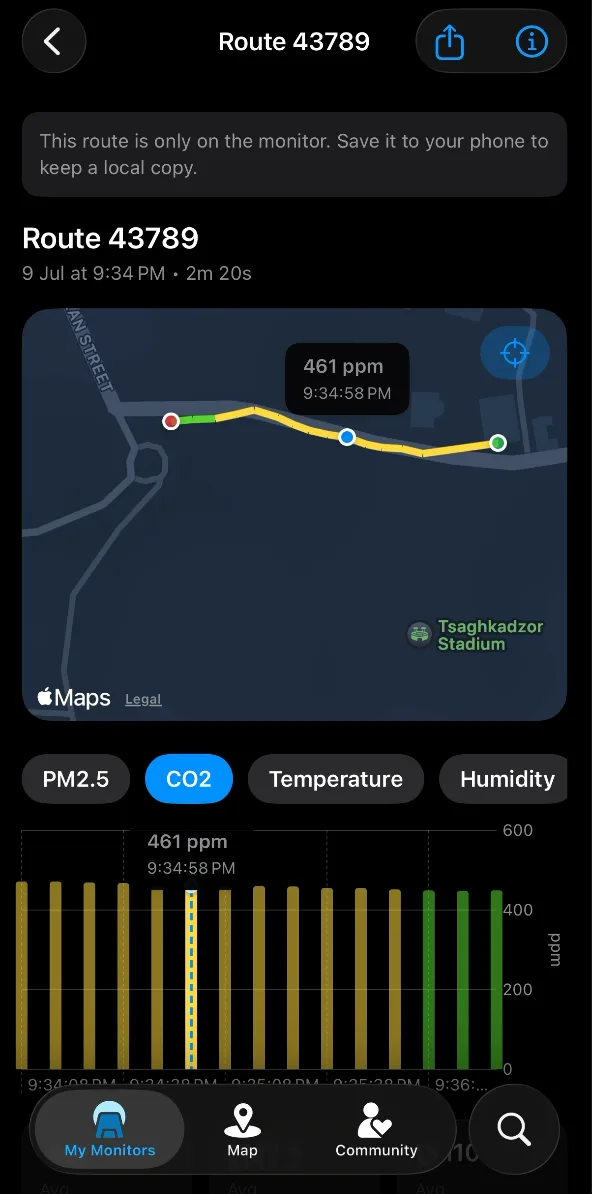
In the AirGradient app, open Routes from the connected monitor screen to view routes stored on your phone, in the AirGradient cloud, and on your monitor.
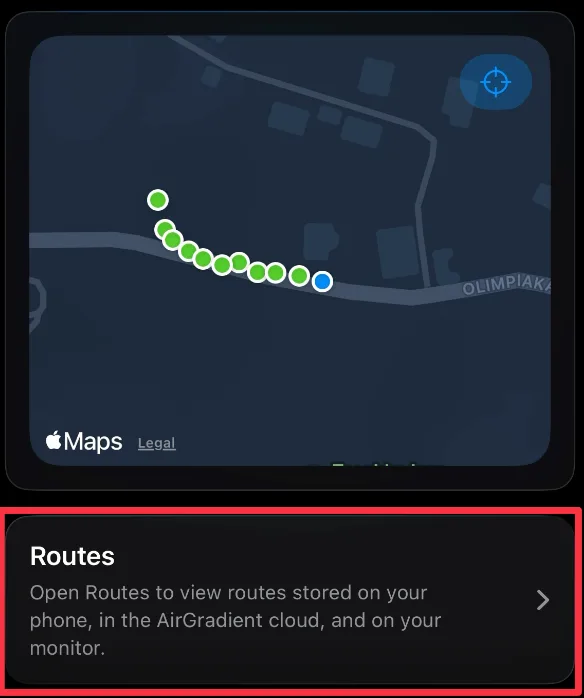
- Select a route.
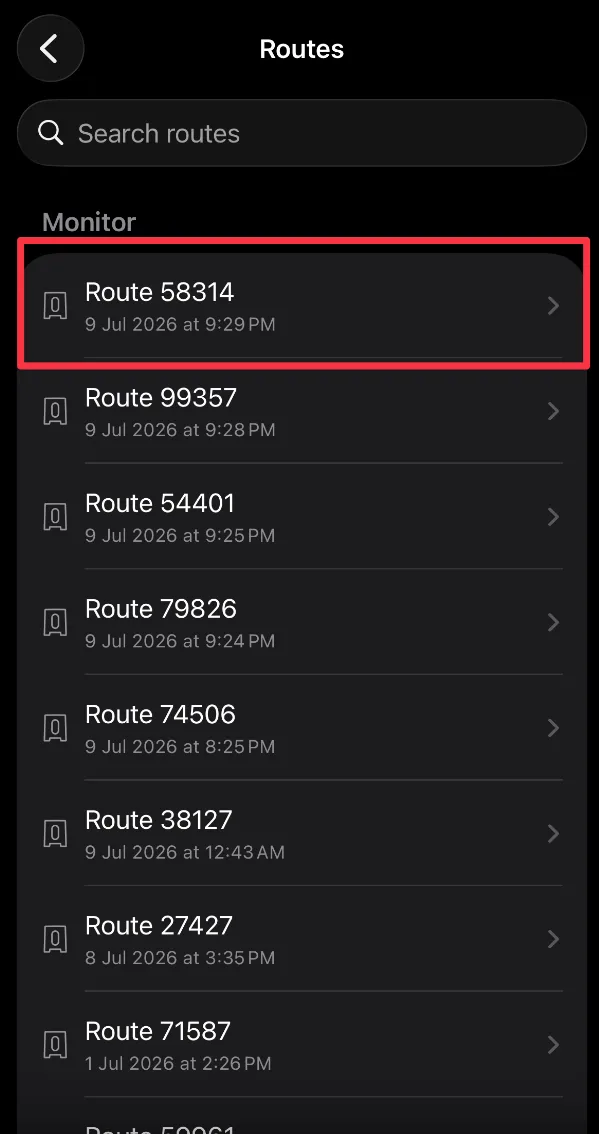
- View Route and associated data points for each GPS coordinate. If the Go does not have a GPS fix, it will still record sensor readings while it waits for location data.
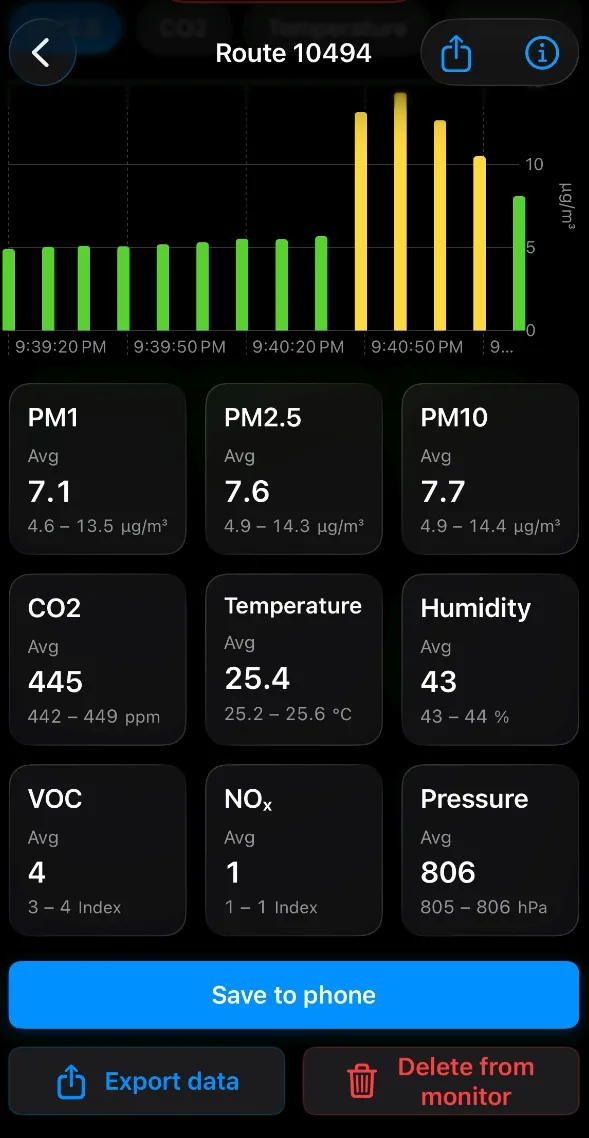
You can also export routes using the options at the bottom of the route screen:
Before powering off during route tracking
If route tracking is active, stop tracking from the monitor display or the app before powering off. This helps preserve the end of the route.
Questions or feedback?
If anything on this page is unclear, or if you have suggestions for how we can improve this guide, please leave a comment below.
You can also contact us through our support form here: Contact Support