AirGradient Open Air Max: Adding to the Dashboard
AirGradient Open Air Max: Adding to the Dashboard
Open the Onboarding Wizard
To add your monitor, open the onboarding wizard:
https://app.airgradient.com/onboarding/welcome
If you are already signed in, the link will take you straight to the onboarding page. If you are not signed in, you will be prompted to create an account or log in.
Add the Monitor
During onboarding:
1 - Select Open Air Max.
2 - Choose the correct model:
- O-M-1PPST for the model without NO2 and O3.
- O-M-1PPSTON for the model with NO2 and O3.
3 - Enter the monitor serial number from the back of the device.
4 - Choose a location name.
After adding the monitor, it should appear on the dashboard.
If the monitor has not reported data yet, wait at least 15 minutes before troubleshooting. Cellular data may take several minutes to appear after startup.
Viewing Battery and Solar Data
The Open Air Max reports battery voltage and solar panel voltage to the dashboard.
To show these parameters:
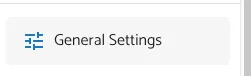
1 - Go to General Settings in the dashboard.
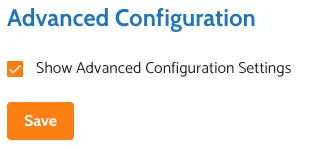
2 - Enable Show Advanced Configuration Settings.
3 - Return to the dashboard.
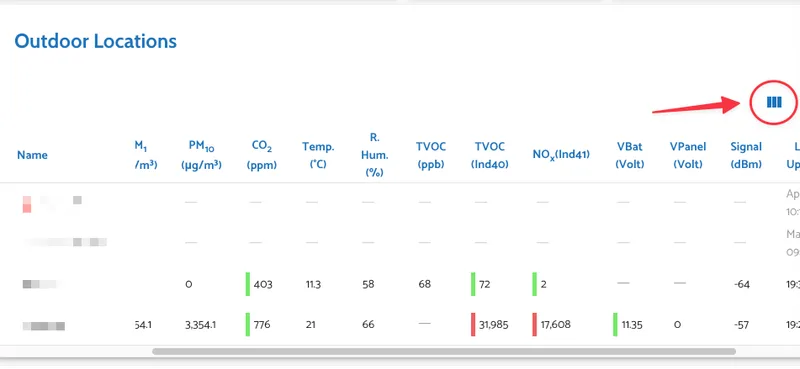
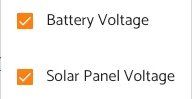
4 - Select the battery voltage and solar panel voltage parameters.
If the monitor does not show data
Try the following:
- Confirm that the device is powered on.
- Check the status LED pattern.
- Make sure there is cellular coverage or a working WiFi connection (if connected to WiFi)
- Wait at least 15 minutes after startup.
- Confirm that the serial number was entered correctly.
- If the monitor uses a local SIM card, confirm that its APN has been configured.