Create a New Place and Move Locations Between Places in the AirGradient Dashboard
Create a New Place and Move Locations Between Places in the AirGradient Dashboard
For an explanation of how Places, Locations, and monitor hardware work together, see What Are Places and Locations in the AirGradient Dashboard?.
Before you start
- Sign in to the AirGradient Dashboard.
- Make sure you have access to General Settings and Locations, meaning you are an administrator.
- If you are moving Locations, create the destination Place first if it does not already exist.
Create a new Place
- Open General Settings from the Dashboard sidebar.
- Go to Place.
- Select Create New Place in the top-right corner.
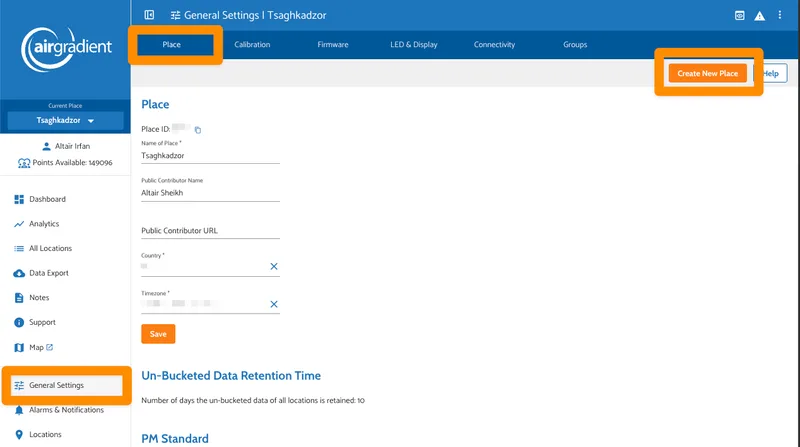
Enter the required details:
- Name of Place
- Country
- Timezone
Confirm the form to create the Place.
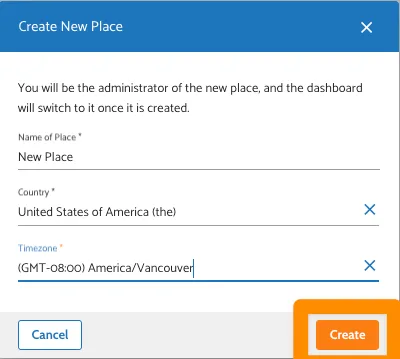
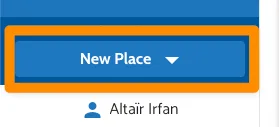
You will be automatically redirected to the new Place.
You can select between Places using the place picker:
Move Locations to another Place
What happens when you move a Location
The Location's historical air-quality data is preserved and moves with the Location.
The following Location settings are not preserved:
- alarms are deleted
- notes are deleted
- the Location Group assignment is cleared
Before moving a Location, record any alarms, user access, notes, or Location Group assignments that you need to recreate in the destination Place.
Note: Outdoor Locations can be moved one at a time. Indoor Locations can be moved in bulk.
For Indoor Locations:
- Open Locations from the Dashboard sidebar.
- Select the checkbox to the left of each Indoor Location you want to move.
- Select Move Locations.
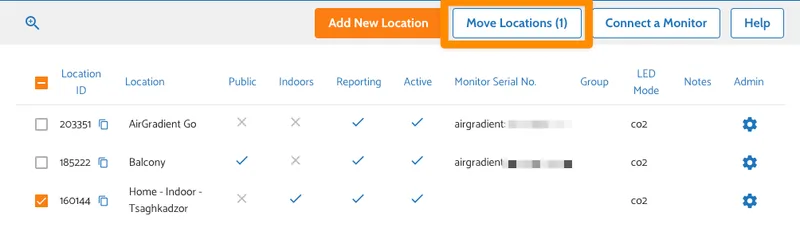
- In the dialog, select the Destination Place.
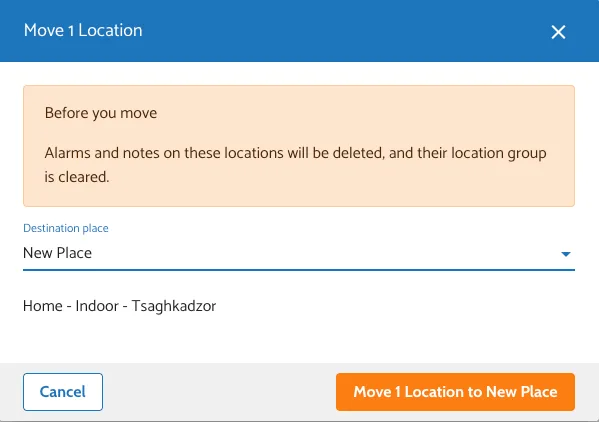
- Confirm the move.
The selected Locations will now appear under the destination Place.
For Outdoor Locations:
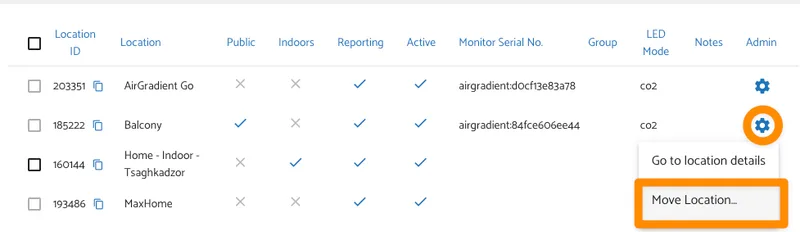
- Click the gear wheel on the right hand side of the location.
- Choose **Move Location... **
- In the dialog, select the Destination Place.
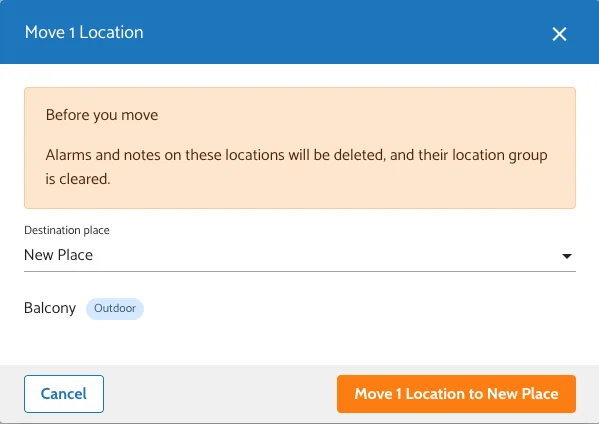
- Confirm the move.