AirGradient Go: Buttons and Navigation
AirGradient Go: Buttons and Navigation
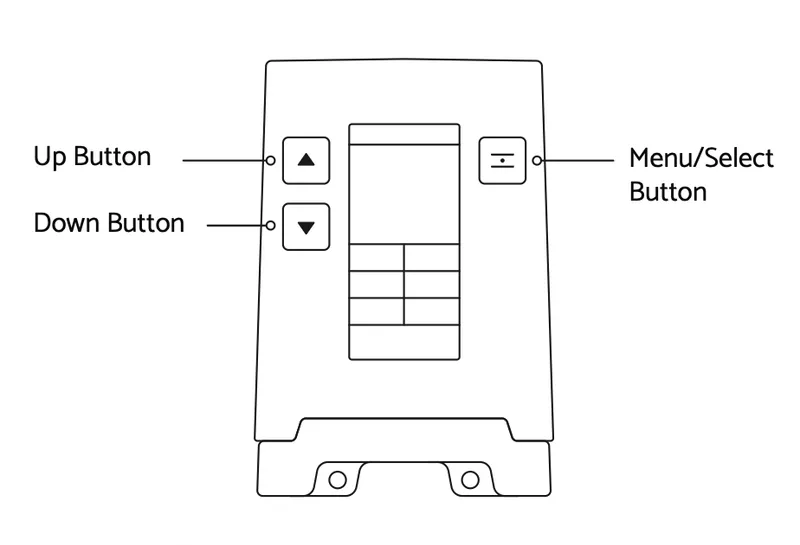
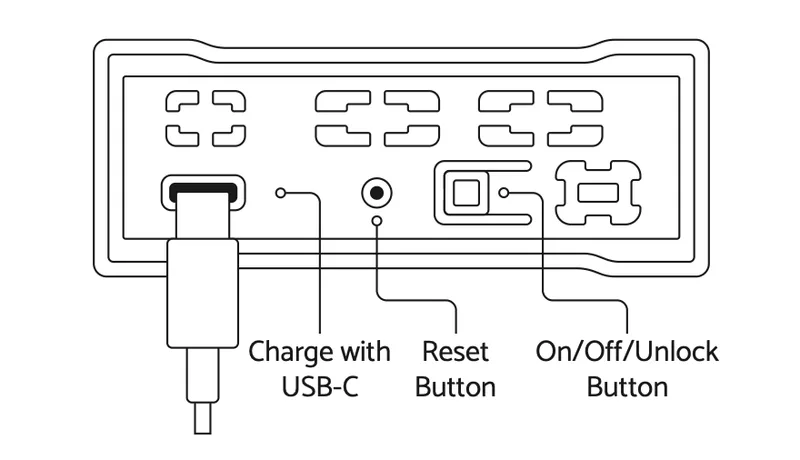
The AirGradient Go has these controls:
| Input | Function |
|---|---|
| Up | Move up through menu items |
| Down | Move down through menu items |
| Menu/Select | Select an item or open the menu |
| On/Off/Unlock | Short press locks or unlocks; long press powers off |
| Reset | Use only if instructed by AirGradient support |
On/Off/Unlock Button
- Short press (1 sec): lock or unlock the monitor.
- Long press (3 sec): power on/off the monitor.
- Longer press while on (10 to 12 second): hard reset the monitor.
The Go can be locked and unlocked while it is on.
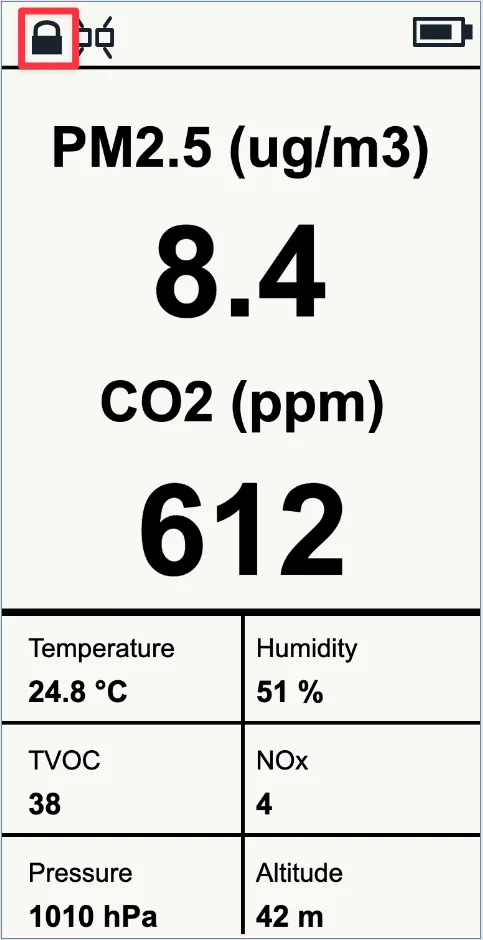
When the monitor is locked, the front capacitive buttons do not function. This helps prevent accidental touches while carrying the monitor. The lock state is conveyed by a lock symbol on the display:
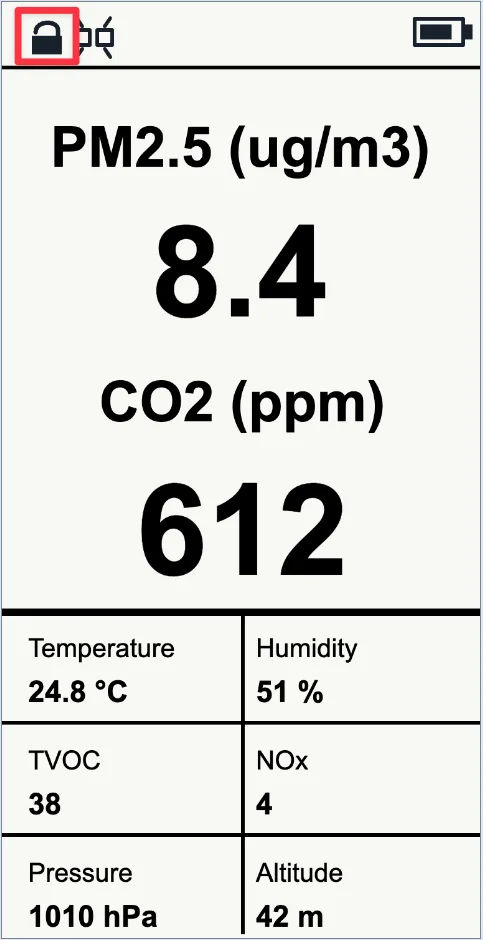
The unlock state is conveyed with an unlatched lock symbol:
The monitor can automatically lock after a timeout. Change this in Settings > Auto Lock.
Up, Down, Menu/Select Buttons
Use the three front capacitive buttons for navigation:
- Menu/Select to open the main menu (while on the home screen) or select an item.
- Up and Down to move through menu items.
On the menu screens, Menu/Select can also be used for these shortcuts:
- Double press: go back one level
- Long press: return to the home screen
Menus and Screens
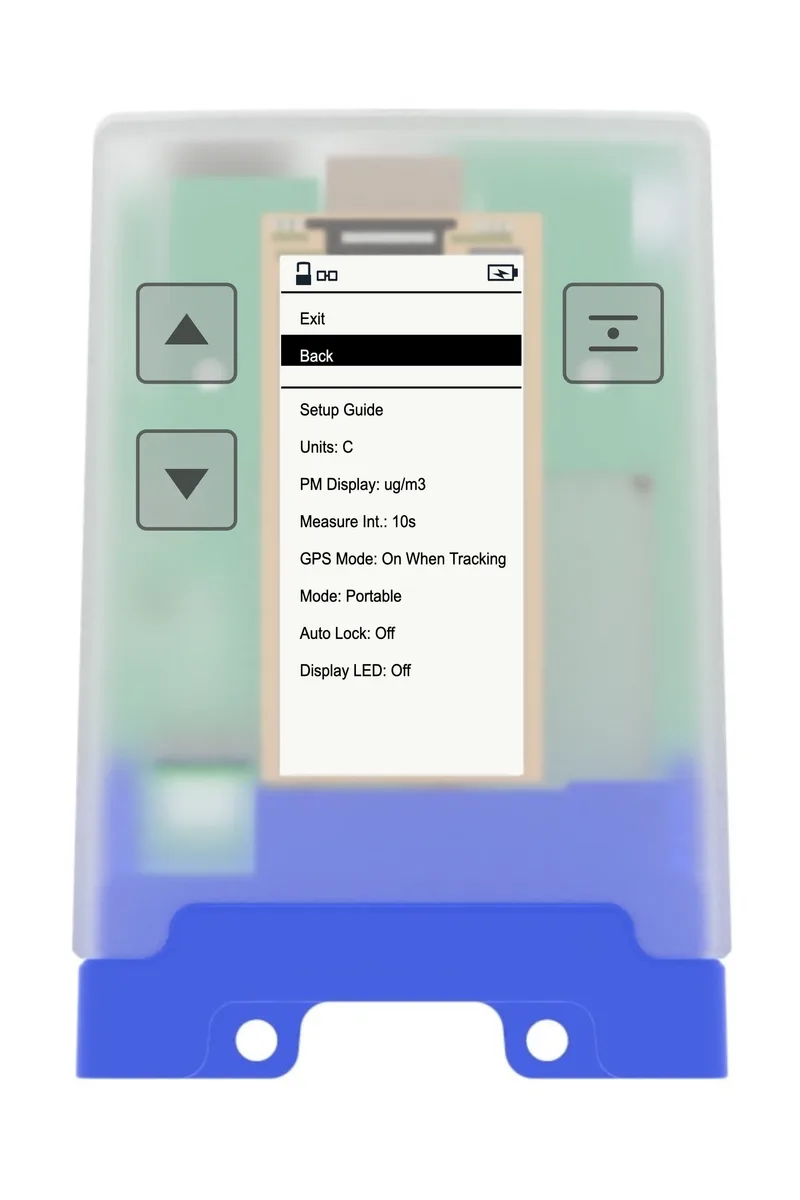
The main screens and menus include:
- Home Screen
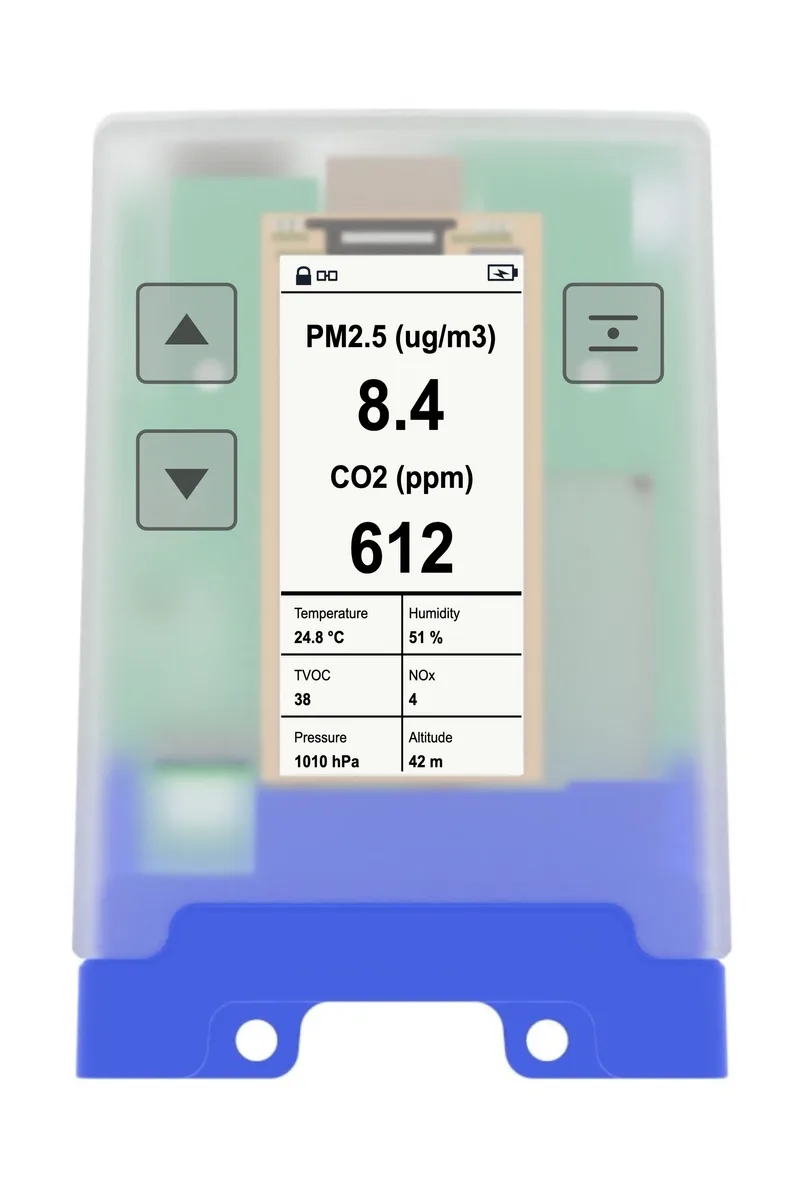
- Main Menu
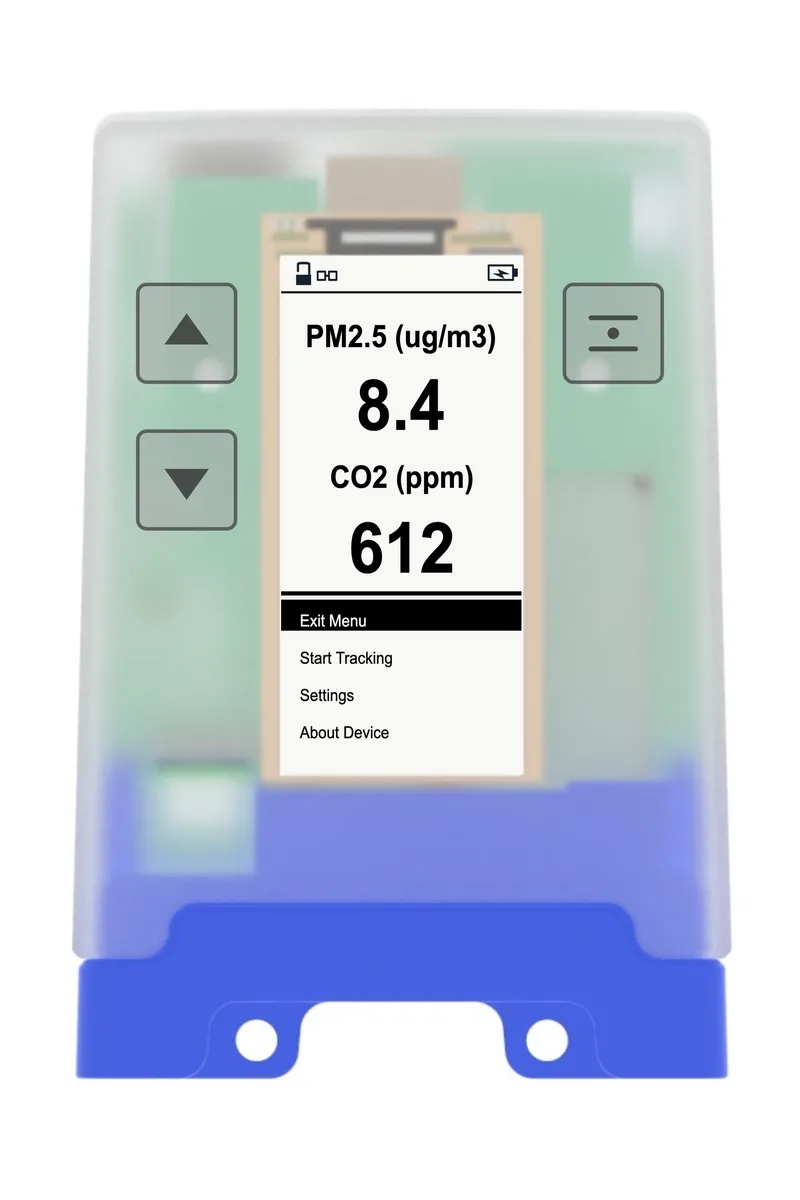
For every option available in the Settings menu, see AirGradient Go: Settings.
- Settings
- About Device
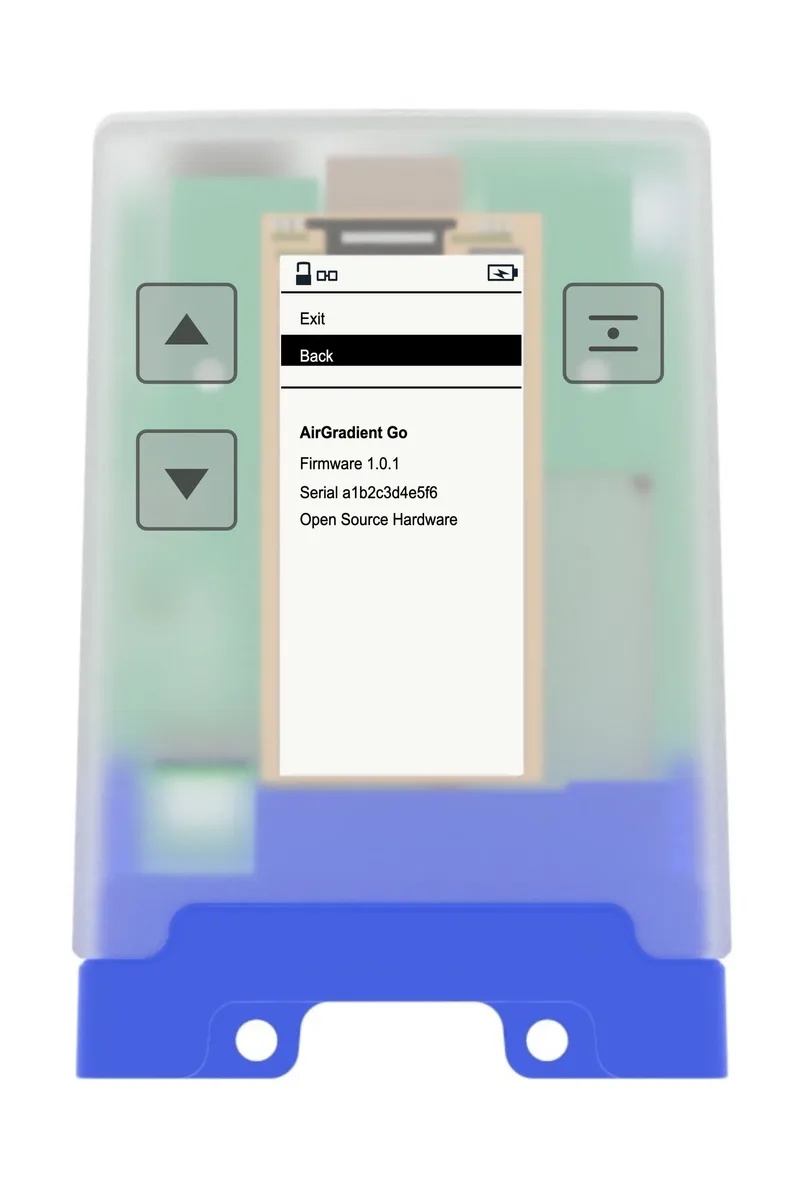
Other screens appear when needed, such as bluetooth pairing passkey, getting started, WiFi setup, and more setup screens.
If the touch buttons behave unexpectedly
If the front buttons register touches without being pressed, or remain unresponsive after restarting the monitor, see AirGradient Go: Performing a Hard Reset.
A hard reset restarts the monitor without deleting data or changing its settings.
Related Article
Questions or feedback?
If anything on this page is unclear, or if you have suggestions for how we can improve this guide, please leave a comment below.
You can also contact us through our support form here: Contact Support