AirGradient Go: Charge and Power Off
AirGradient Go: Charge and Power Off
Charging
Charge the AirGradient Go through the USB-C port.
- Connect a USB-C cable to the monitor.
- Connect the cable to a 5V 2A USB power source.
Use a standard 5V, 2A USB power supply (not included). Most phone chargers meet this requirement.
You will likely have one of these lying around your house from a smartphone or another device.
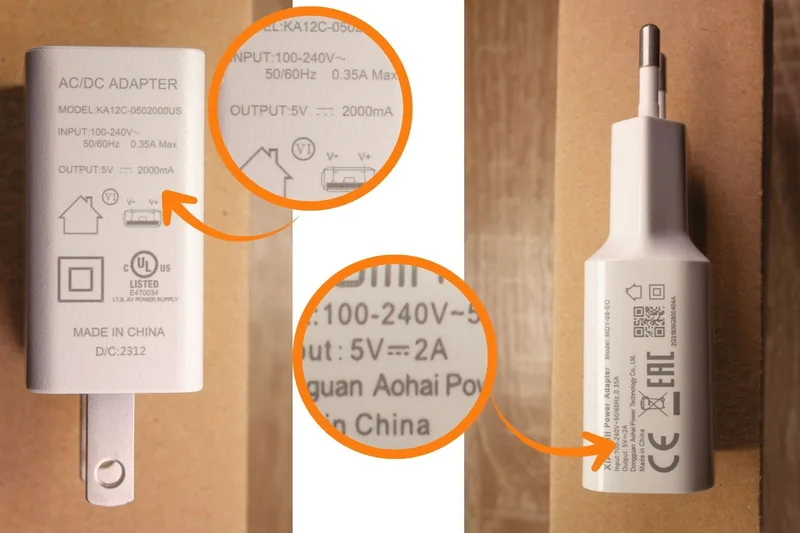
- Allow the monitor to charge before first use.
For help identifying charging, plugged-in, and battery-level icons, see AirGradient Go: Display Icons and Status Indicators.
For battery capacity and hardware details, see AirGradient Go: Technical Specifications.
Power off
Press and hold the On/Off/Unlock button to power off the monitor.
If you keep holding the button after it powers off, the monitor may power-cycle and restart.
With USB connected, the monitor will enter a low-power sleep state instead of fully powering off from the battery.
Before opening or reassembling the monitor
Do not open, disassemble, or reassemble the AirGradient Go while it is powered.
- Disconnect the USB-C cable.
- Press and hold the On/Off/Unlock button to fully power off the monitor.
- Wait until the shutdown process is complete before opening the enclosure.
Electrostatic discharge while the monitor is powered can cause the capacitive buttons to become unresponsive.
Before powering off during route tracking
If route tracking is active, stop tracking from the monitor display or the app before powering off. This helps preserve the end of the route.
For route details, see AirGradient Go: Route Tracking and GPS.