Pair AirGradient Go With the AirGradient App
Pair AirGradient Go With the AirGradient App
Before you start
- Power on the AirGradient Go.
- Keep AirGradient Go in Portable mode for the normal phone connection. (See Operating Modes)
- Keep the monitor close to the phone while pairing.
- Make sure Bluetooth is enabled on your phone.
Download the AirGradient App
Search for "AirGradient Map" in your app store or use the links below:
Pairing on iOS
Open the AirGradient app.
Go to My Monitors and tap the + icon in the top right:
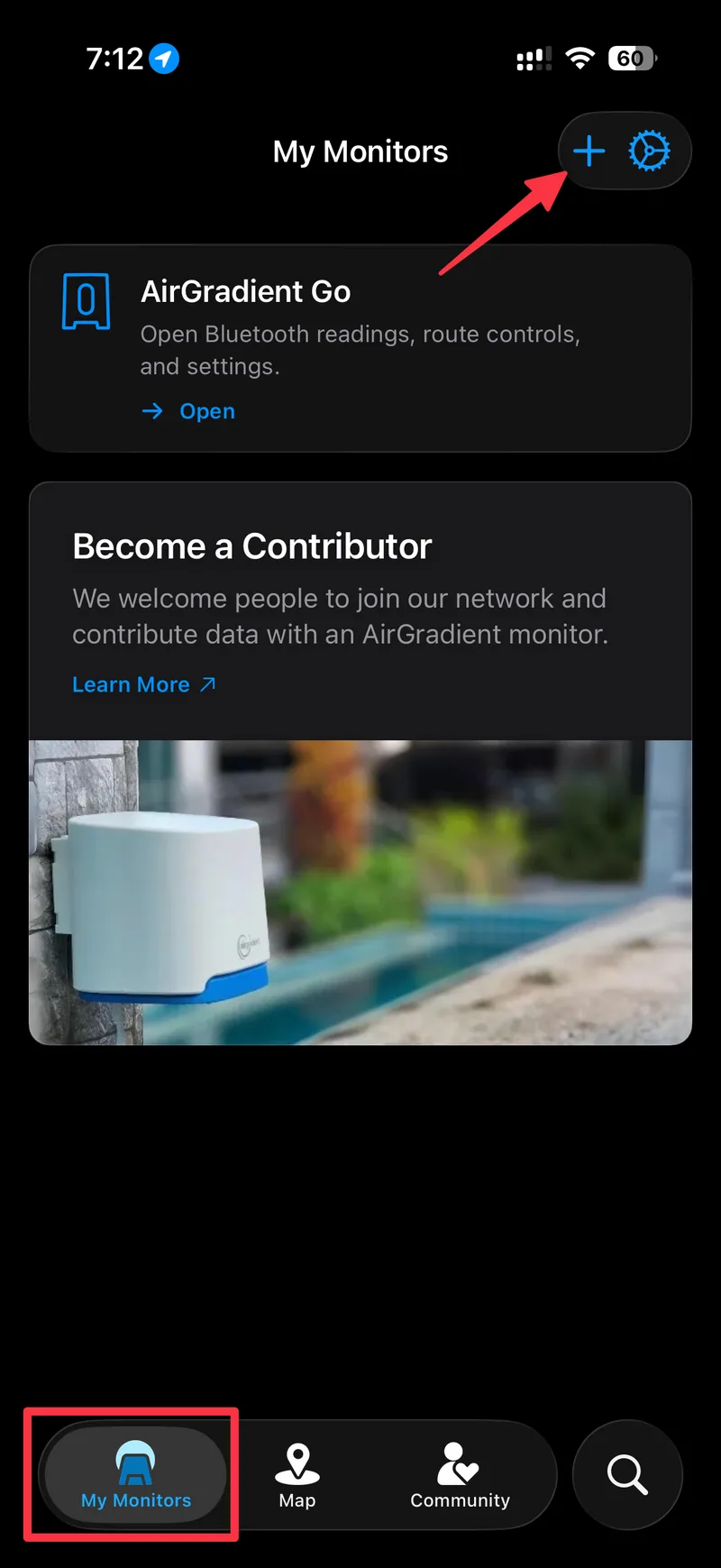
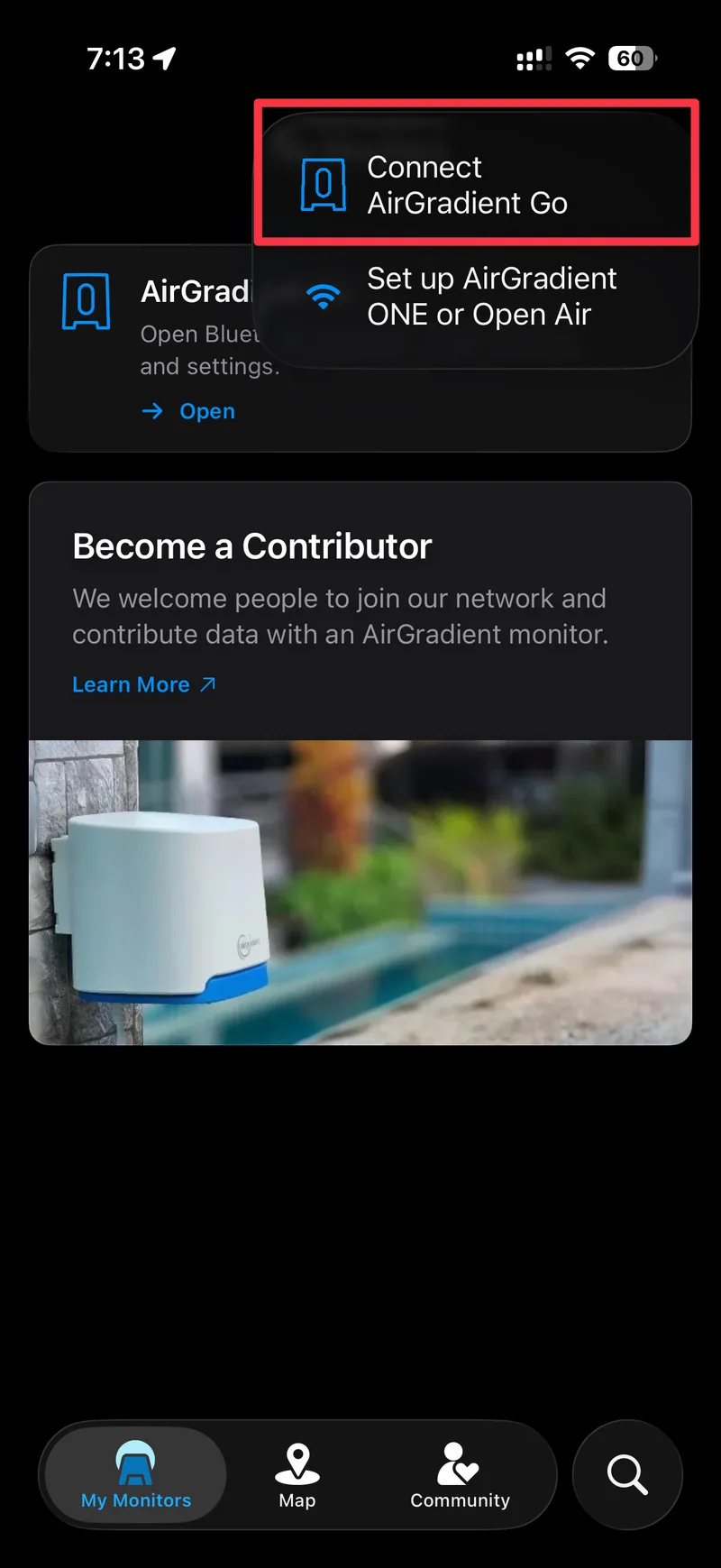
- Choose Connect AirGradient Go from the menu that appears:
- On the Pair AirGradient Go screen, tap Start Scanning:
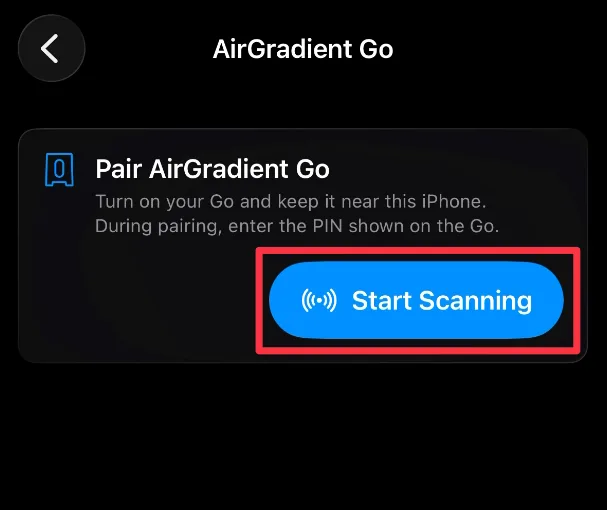
Keep AirGradient Go near the iPhone while the app scans.
- Select the nearby AirGradient Go device.
In the AirGradient app, your monitor appears with a name like:
AirGradient Go [suffix]
The suffix is the last four lowercase hexadecimal characters of the monitor serial. For example, a serial ending in 3a78 advertises as:
AirGradient Go 3a78
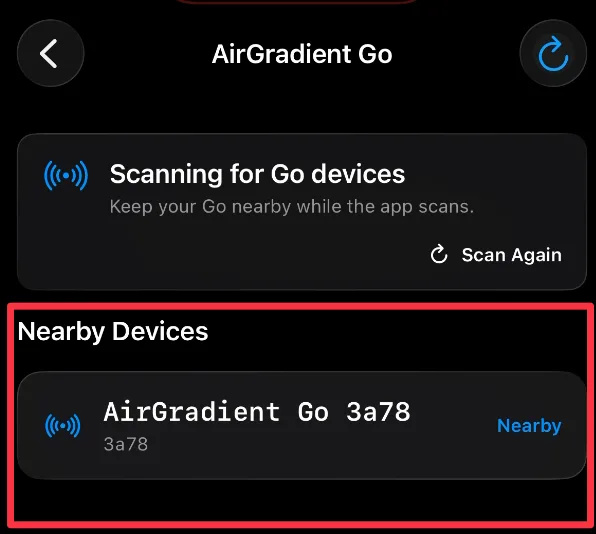
If you see more than one Go nearby, choose the one that matches the serial number on your Go unit. The serial number is on the back.
- When the iOS Bluetooth Pairing Request appears, enter the code shown on the AirGradient Go display.
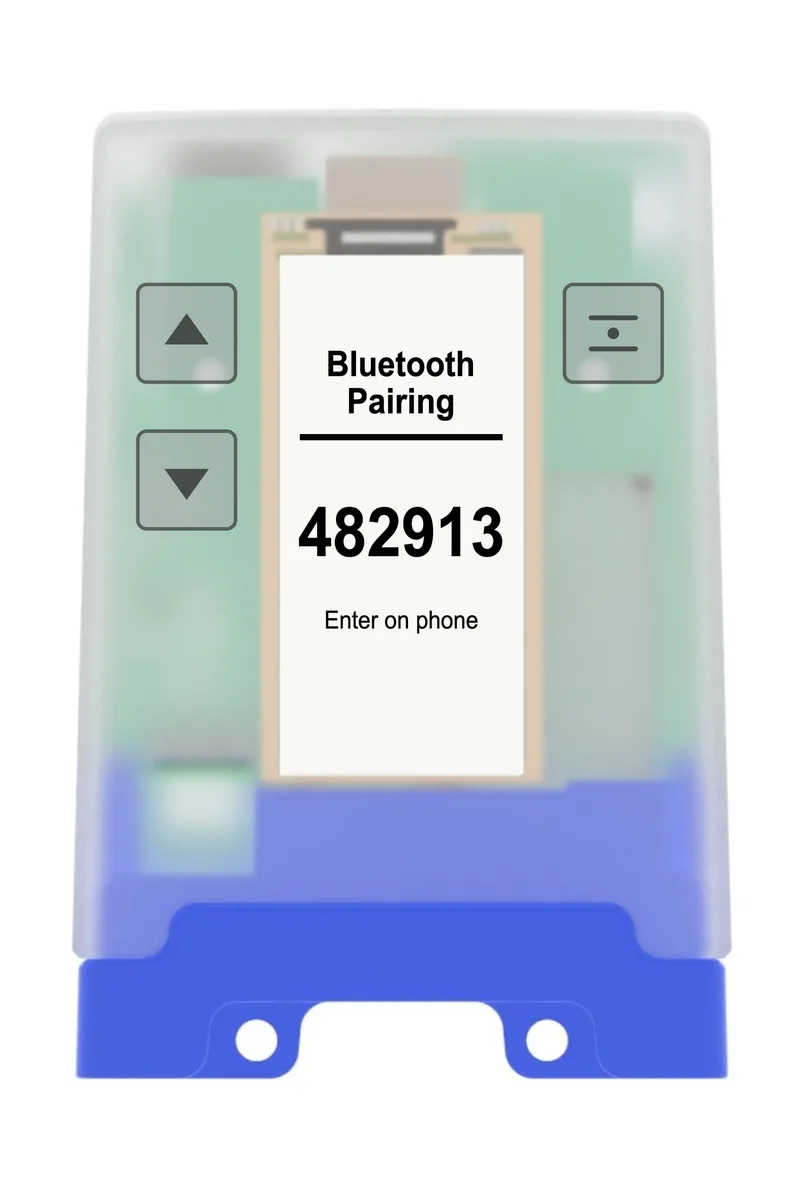
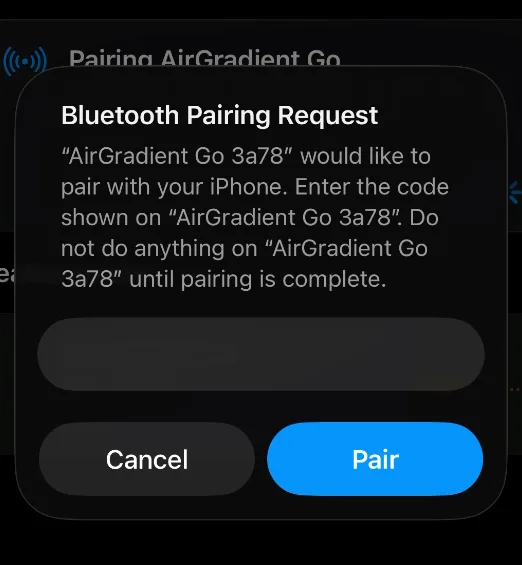
Tap Pair.
Wait for pairing to complete. Do not press buttons on the monitor until pairing is finished.
After pairing succeeds, you should see live readings, monitor status, route controls, live activity control and a configuration menu.
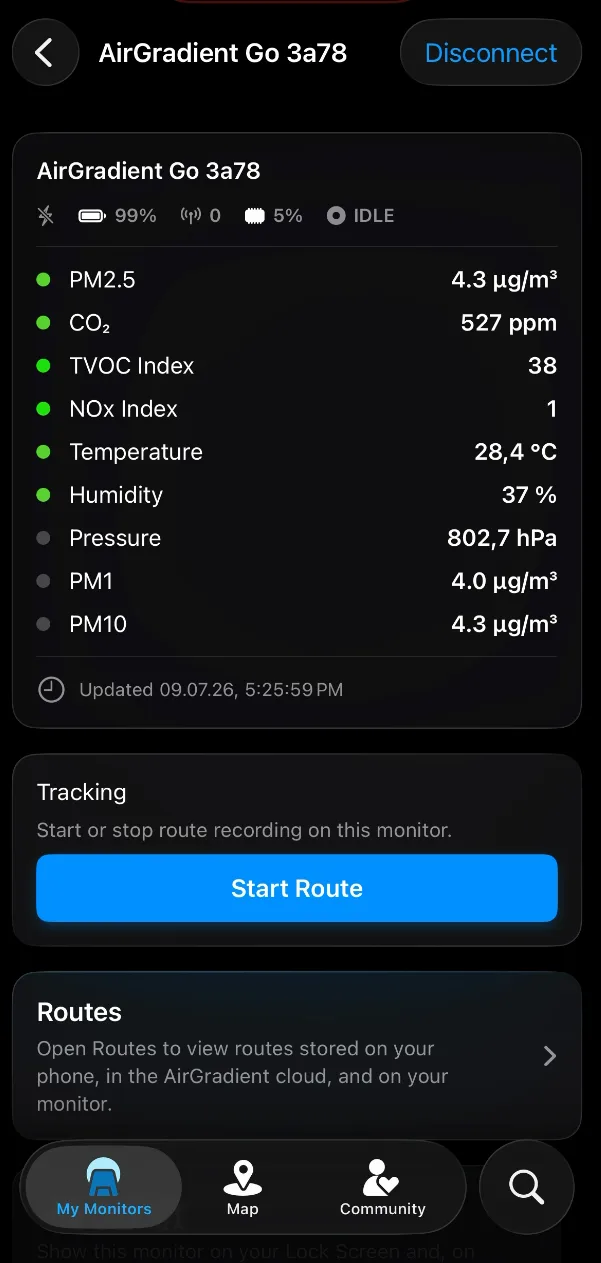
The Bluetooth-connected icon confirms that the monitor is connected to the app. See AirGradient Go: Display Icons and Status Indicators for the other status icons.
Pairing on Android
Open the AirGradient app.
Go to My Monitors and tap the + icon in the top right:
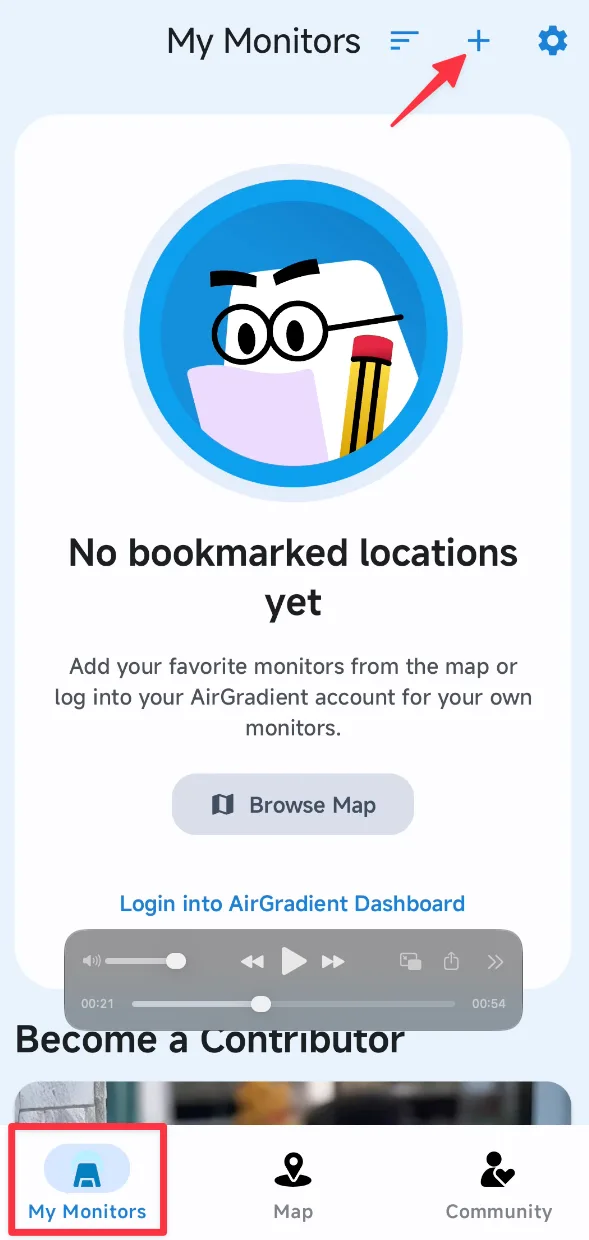
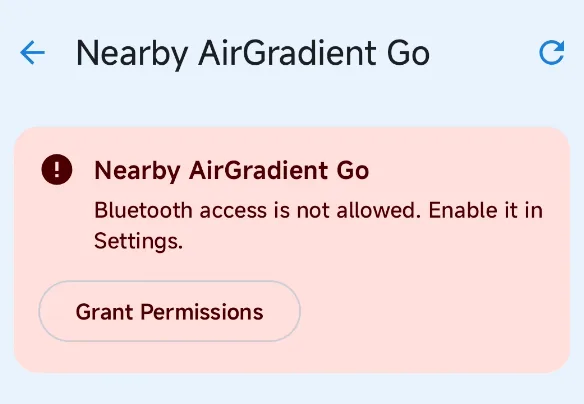
- If the app shows a Bluetooth permission warning, tap Grant Permissions:
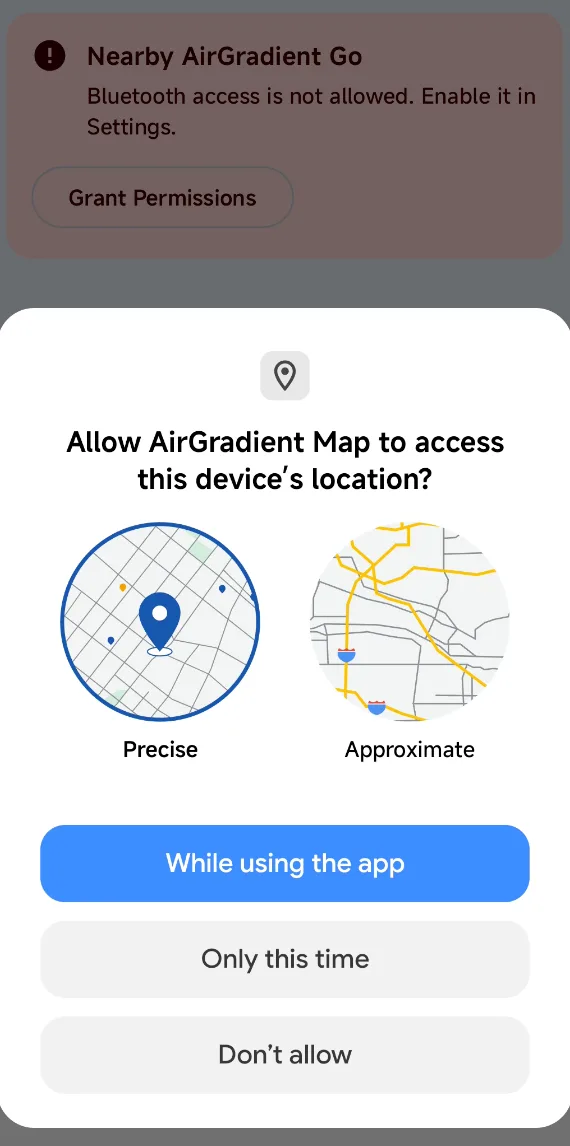
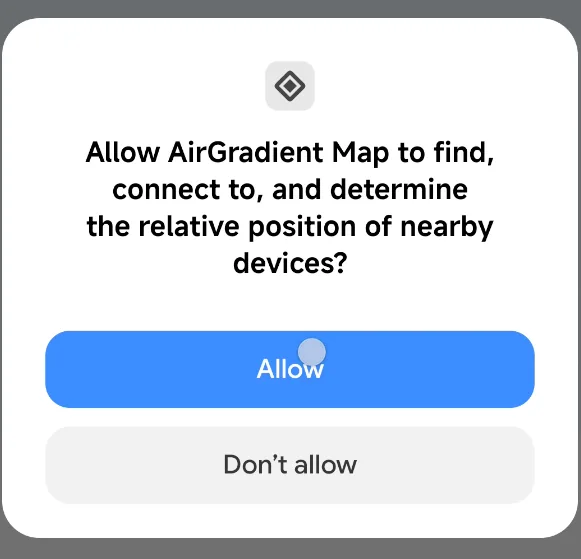
- Allow Location Access and Nearby Devices permissions:
- Select the nearby AirGradient Go device.
In the AirGradient app, your monitor appears with a name like:
AirGradient Go [suffix]
The suffix is the last four lowercase hexadecimal characters of the monitor serial. For example, a serial ending in 3a78 advertises as:
AirGradient Go 3a78
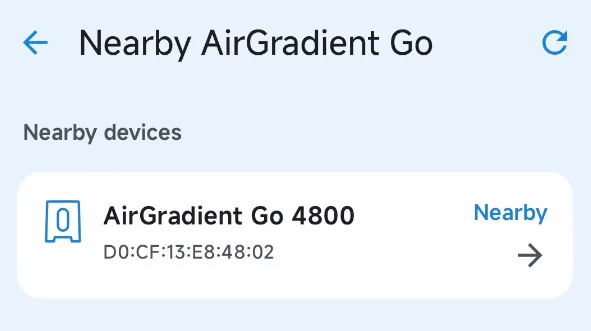
If you see more than one Go nearby, choose the one that matches the serial number on your Go unit. The serial number is on the back.
- When Android asks to pair with the monitor, tap Pair. If it asks again, tap Pair again.
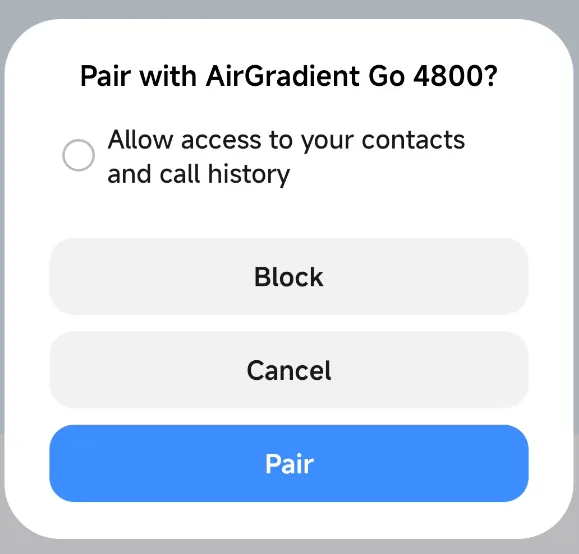
- When the Bluetooth Pairing prompt screen appears, enter the 6-digit pairing code shown on the AirGradient Go display.
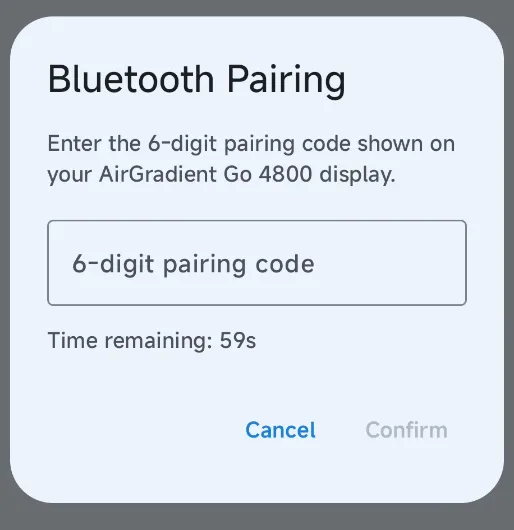
- Tap Confirm.
After pairing succeeds, you should see live readings, monitor status, route controls, live activity control and a configuration menu:
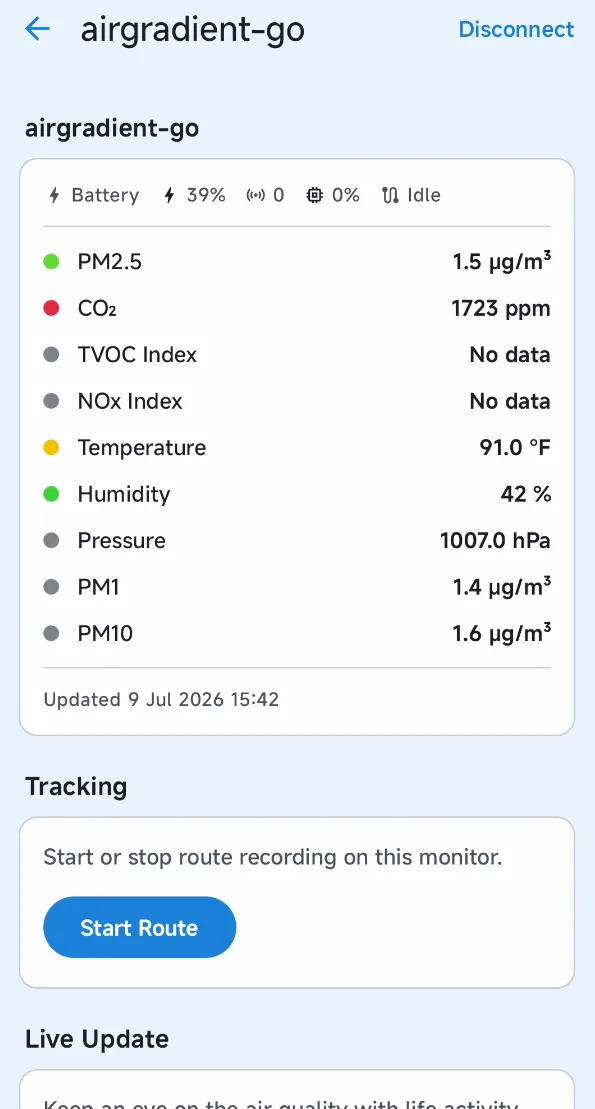
The Bluetooth-connected icon confirms that the monitor is connected to the app. See AirGradient Go: Display Icons and Status Indicators for the other status icons.
Optionally stream app data to the AirGradient Dashboard
When the Go is in Portable mode, the app can relay readings from the monitor to the AirGradient Dashboard.
Before enabling this option, register the monitor in the dashboard. Then, in the AirGradient app:
- Open the connected monitor.
- Open Configure My Monitor.
- Enable Stream data to server.
The app continues to show current readings. The dashboard stores the readings uploaded by the app.
If pairing does not complete
If the wrong passkey is entered or pairing fails, the app cannot access the monitor data.
Try these steps:
- Keep the monitor close to the phone.
- Make sure Bluetooth is enabled on the phone.
- Start pairing again from the app.
- Enter the passkey exactly as shown on the monitor display.
- If the monitor is already connected to another phone, disconnect it from that phone first.
Next steps
- Learn what AirGradient Go measures and where readings appear
- Record and view routes with AirGradient Go
Questions or feedback?
If anything on this page is unclear, or if you have suggestions for how we can improve this guide, please leave a comment below.
You can also contact us through our support form here: Contact Support