AirGradient Open Air Max: Change the APN for a Local SIM Card
AirGradient Open Air Max: Change the APN for a Local SIM Card
If you replace the SIM card in your AirGradient Open Air Max, your mobile network provider may require a specific Access Point Name (APN). The APN tells the monitor which mobile data network to use.
This article explains how to enter the APN through the monitor's Device Portal. For SIM card requirements and replacement instructions, see AirGradient Open Air Max: Cellular Connectivity and SIM Card.
Before you start
- Install the local SIM card in the Open Air Max.
- Confirm that the SIM card has an active data plan and supports LTE CAT-1.
- Ask your mobile network provider for the exact APN to use.
- Keep a smartphone, tablet, or computer near the monitor for configuring the APN.
1. Power on the monitor
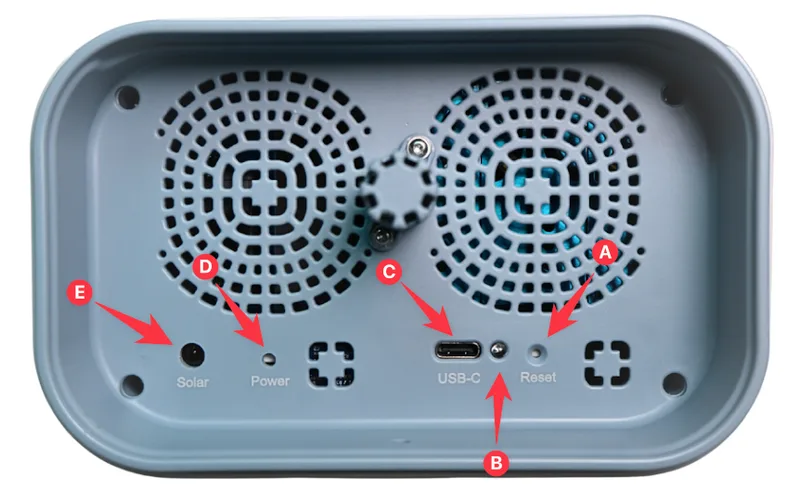
Turn the monitor on using the battery power switch (D).
The switch is ON when it is recessed, meaning it has been pushed inward. See this video for guidance.
If the monitor is already on, turn it off and then on again as the following steps must be completed during the early startup process.
Confirm that the status LED turns solid blue.
2. Enter connection mode
Right after start up, hold the reset button (A) for about five seconds, then release it.
The status LED will blink five times and the monitor creates a WiFi hotspot named:
airgradient-xxxxxxxxxxxx
The characters after airgradient- are the monitor's serial number. While the device hotspot and device portal are active, the status LED continues to blink.
3. Connect to the monitor hotspot
Using your smartphone, tablet, or computer, connect to the airgradient-xxxxxxxxxxxx WiFi hotspot.
Enter this password:
cleanair
The device hotspot does not provide internet access. This is normal during setup.
4. Open the Device Portal
The Device Portal should open automatically within about 10 seconds.
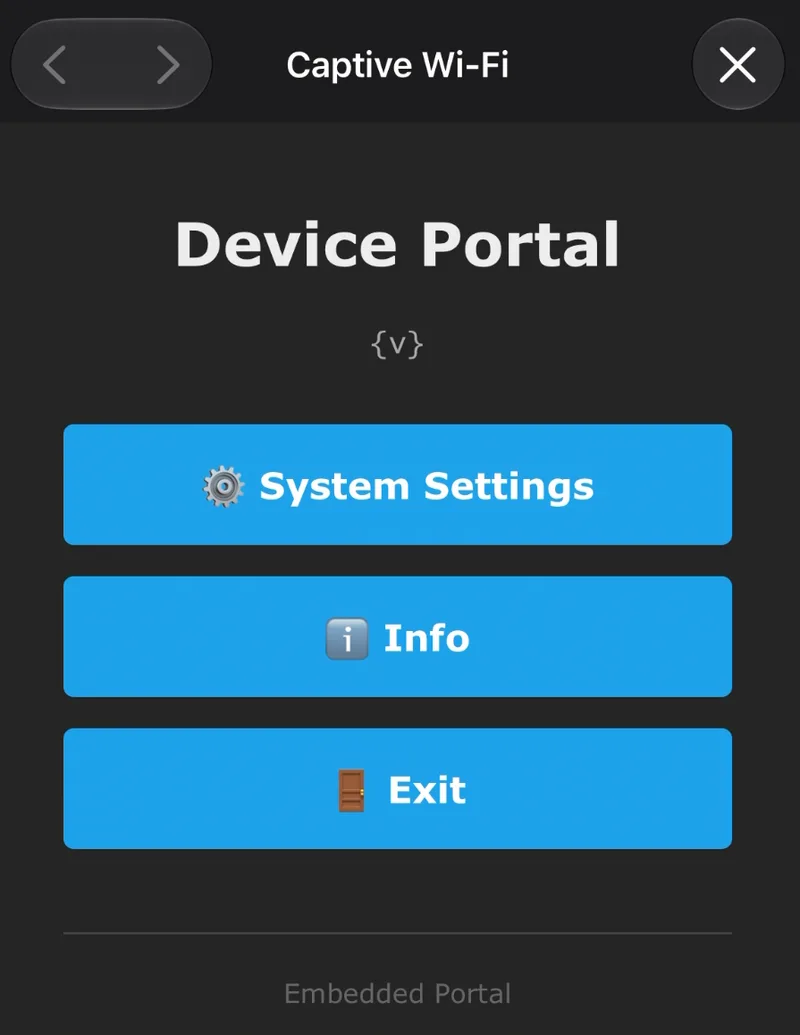
If it does not open:
- Open a web browser.
- Enter
192.168.4.1in the address bar. - Confirm that your phone or computer is still connected to the monitor hotspot.
iPhone and iPad
If the portal does not open or 192.168.4.1 does not load:
- Stay connected to the AirGradient hotspot even if iOS shows No Internet Connection.
- Temporarily turn off Cellular Data under Settings > Cellular > Cellular Data.
- If the device reconnects to your normal WiFi network, open that network's information screen and temporarily turn off Auto-Join.
- Reconnect to the AirGradient hotspot and open the Device Portal again.
After completing the setup, turn Cellular Data back on and re-enable Auto-Join if you disabled it.
Android
On some Android versions, select Manage router or Tap here to sign in to the network to open the Device Portal.
5. Enter the APN
- On the Device Portal, select System Settings.
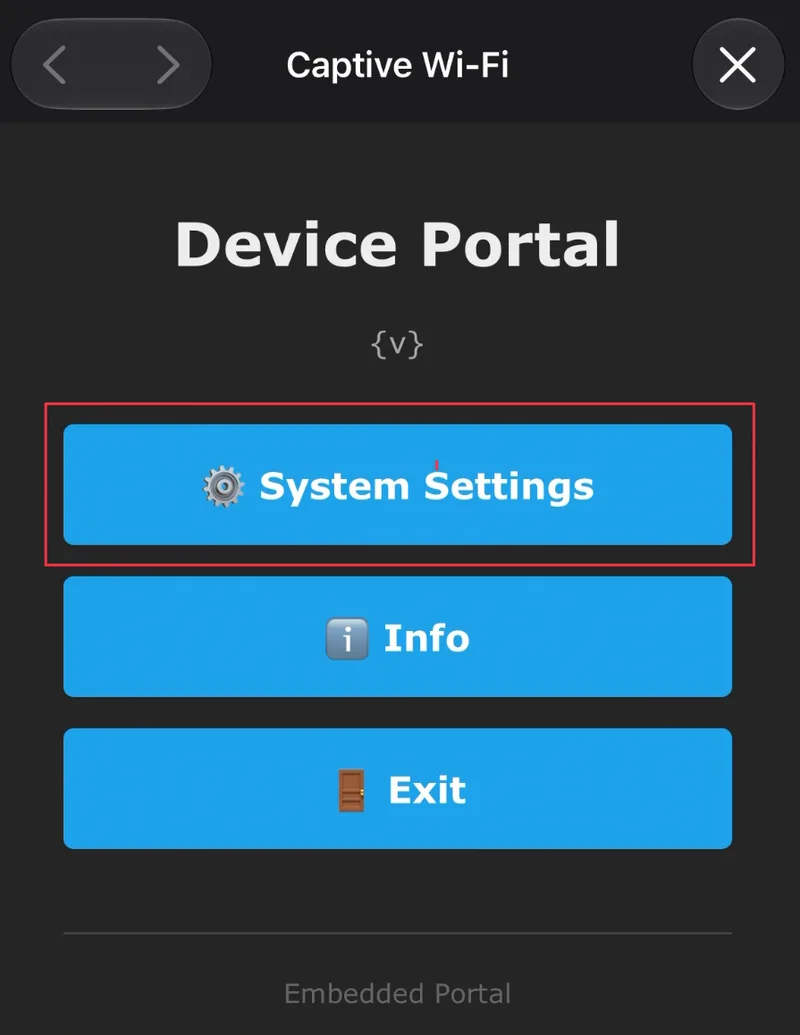
- Choose Cellular and scroll to SIM Card APN.
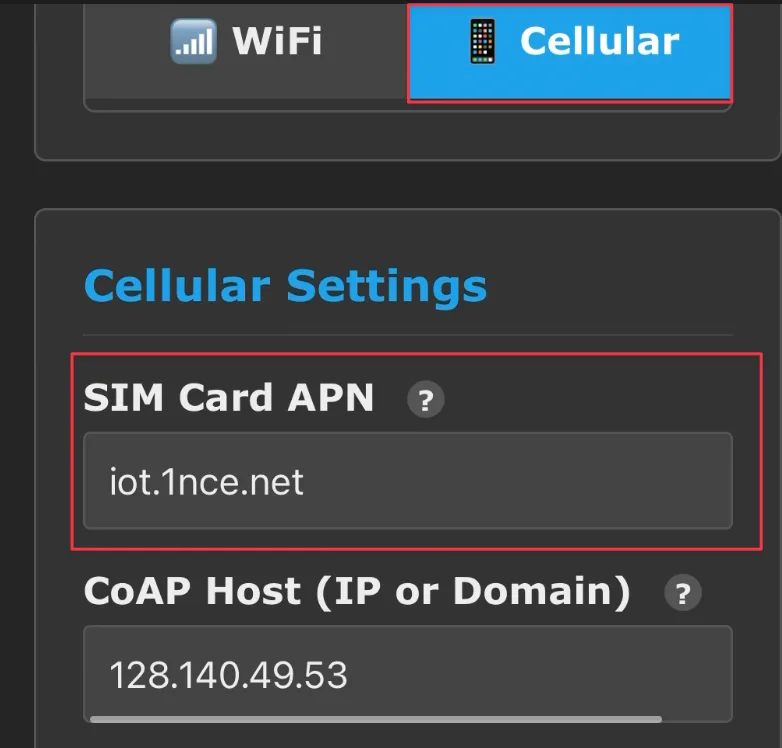
Enter the APN provided by your mobile network provider exactly as supplied.
Select Save Setting.
The portal will display the following message:
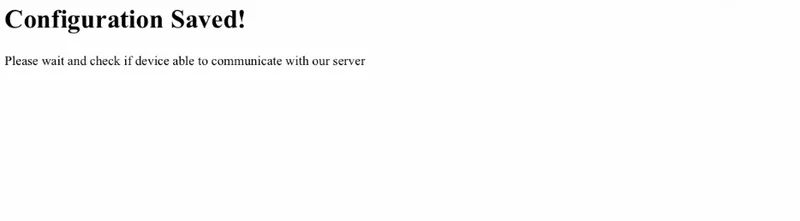
Wait for the monitor to connect to the cellular network. Readings may take at least 9 minutes to appear in the AirGradient Dashboard.
Status LED indications to watch out for indicating successful connection or an error:
| Phase | LED pattern | Status |
|---|---|---|
| Power on | Solid blue | Device is starting |
| Startup | Fast blink x2 | Initializing SIM or connecting to cellular network |
| Startup | Fast blink x3 | Connected; entering normal phase |
| Startup | Fast blink x4 | Data successfully sent; entering normal phase |
| Error | Slow blink x5 | Network connection failure |
| Error | Slow blink x2 | Sensor initialization failure |
| Error | Slow blink x3 | Data transmission failure |
| Normal | LED off | All OK; no issues |
Allow at least 15 minutes after startup before troubleshooting missing data.
If the monitor does not connect
- Confirm that the APN matches the value supplied by your mobile network provider.
- Confirm that the SIM card is active, supports LTE CAT-1, and includes a data plan.
- Check that the installation location has coverage for the selected provider.
- Review the Open Air Max status LED for a network connection or data-transmission error.
- If WiFi is available, follow AirGradient Open Air Max: Switching to WiFi.
For additional checks, see AirGradient Open Air Max: Troubleshooting.