AirGradient Go: Quick Start Guide
AirGradient Go: Quick Start Guide
Hello and welcome to your AirGradient Go!
If you want to skip this guide and get started with the app right away, you can download it for your phone via the links below:
Pairing with the app is optional, and AirGradient Go can also be used on its own.
However, we recommend continuing through this Quick Start Guide to understand the monitor's buttons, charging, operating modes, and the different ways to view your data. This will help you choose the right setup and get the full experience from your AirGradient Go.
When you are ready to connect the monitor to your phone, follow Pair AirGradient Go With the AirGradient App.
AirGradient Go is a portable air quality monitor. It records particulate matter, CO2, TVOC, NOx, temperature, humidity, pressure, and GPS data.
You can use it on its own, connect it to the AirGradient app, or send readings to the AirGradient Dashboard, over Bluetooth via the app or over WiFi directly.
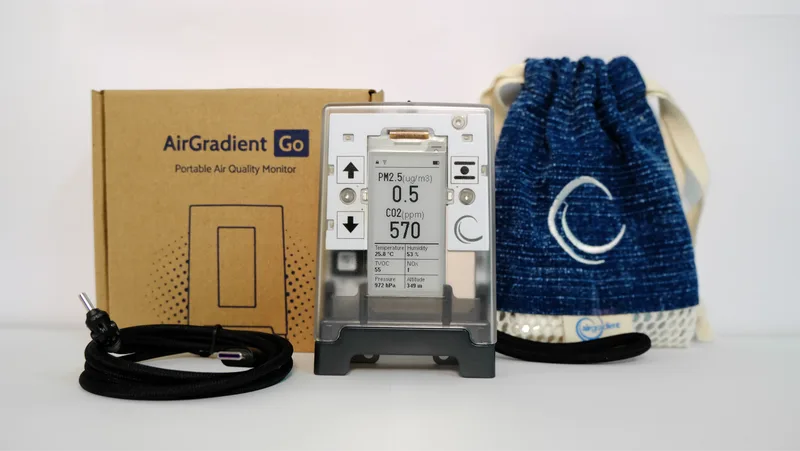
The box includes:
- AirGradient Go monitor
- carry bag
- USB-C cable (50 cm)
- hand strap
You will also need a 5V 2A USB power adapter (not included) for charging it.
Learn the buttons
The Go has three capacitive buttons on the front of the device.
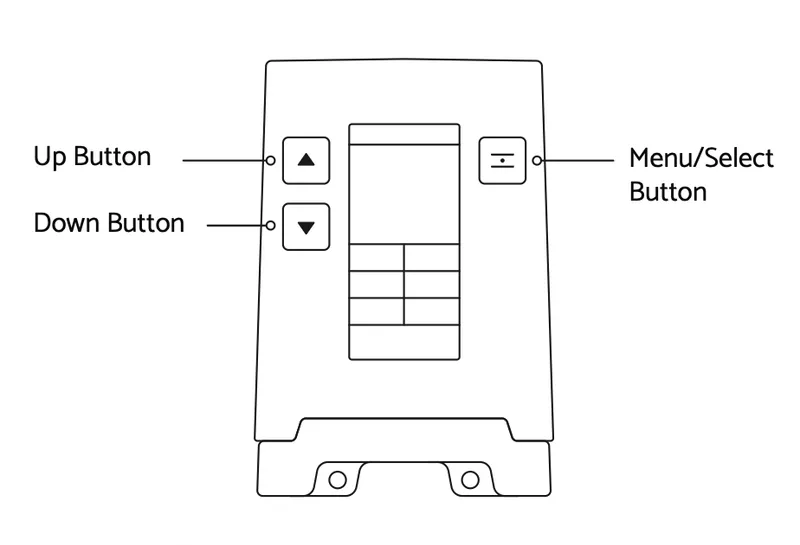
Up button: Use this to move up.
Down button: Use this to move down.
Menu/Select button: Use this button to select an option or open settings.
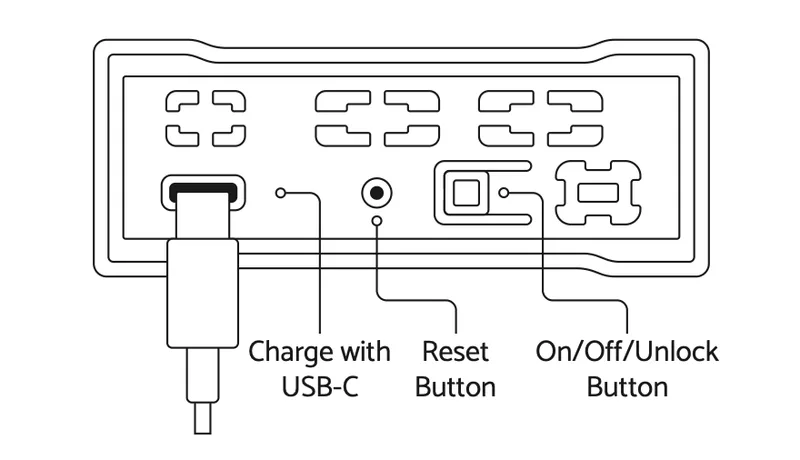
The bottom part of the device has:
USB-C port: Use this to charge the device.
Reset button: Use it only if instructed by our support team.
On/Off/Unlock button: To turn the device on/off and to lock or unlock while it is on.
To understand the icons shown in the status bar, see AirGradient Go: Display Icons and Status Indicators.
See AirGradient Go: Buttons and Navigation for the complete navigation guide.
Turn on and charge your Go
- Press and hold the On/Off/Unlock button on the bottom of the monitor for 3 seconds.
- Wait for the monitor to start.
Once powered on, the e-ink display becomes active. Use the Menu/Select button on the right of the display to select Start Using. This will lead you to the main home screen.
To charge it:
- Connect the USB cable to the USB-C charging port.
- Plug the cable into a 5V 2A USB power source.
Allow the monitor to charge fully before first use.
For charging and power-off instructions, see Charge and Power Off AirGradient Go.
Notes about readings and measurements before first use
Before relying on the readings, keep the following points in mind:
CO2: Manually calibrate the CO2 sensor before first use. Calibration must be performed outdoors in fresh air. Follow AirGradient Go: CO2 Readings and Calibration before assessing the CO2 readings.
Particulate matter (PM): AirGradient Go uses a Sensirion SPS30 PM sensor. Other AirGradient monitors use Plantower PM sensors, so differences of in the range 5 µg/m³ can occur in individual readings. Place the monitors together and compare readings over the same period rather than comparing individual measurements.
Temperature and humidity: Heat from the battery and other internal components make the temperature reading appear higher. Because relative humidity depends on temperature, the humidity reading can also appear lower. Temperature and humidity compensation is planned for a future firmware update.
Altitude: The altitude shown by the Go is estimated from atmospheric pressure, which changes with the weather. The estimate can be higher or lower than your actual altitude and may sometimes be negative. This does not mean that the monitor is defective.
See What AirGradient Go Measures for more information about all measurements.
Choose how you want to use the Go and view the data
You can view AirGradient Go data in three ways:
On the monitor: The display shows readings when you use the Go on its own. No phone or dashboard connection is required.
In the AirGradient app: In Portable mode, the app connects to the Go over Bluetooth and shows current readings. Pair the monitor with the app using Pair AirGradient Go With the AirGradient App.
In the AirGradient Dashboard: There are two dashboard paths:
In Portable mode, the Go sends readings over Bluetooth to the phone. The app can then upload those readings to the dashboard when Stream data to server is enabled in the Configure My Monitor screen. The app continues to show current readings, while the dashboard stores the uploaded data.
In Stationary mode, the Go connects to WiFi and sends readings directly to the dashboard. This is the dashboard-only path; the app is not used as the data relay. See Connect AirGradient Go to WiFi.
See AirGradient Go: Operating Modes for information on Portable, Stationary, and Offline modes.
What would you like to do next?
| I want to... | Go to |
|---|---|
| Learn how to use the buttons | AirGradient Go: Buttons and Navigation |
| Understand display icons and status indicators | AirGradient Go: Display Icons and Status Indicators |
| Choose Portable, Stationary, or Offline mode | AirGradient Go: Operating Modes |
| Change monitor settings | AirGradient Go: Settings |
| View current readings in the app | Pair AirGradient Go With the AirGradient App |
| Send app readings to the dashboard | Pair AirGradient Go With the AirGradient App |
| Send readings directly to the dashboard | Connect AirGradient Go to WiFi |
| Register the monitor in the dashboard | To be updated. |
| Record a route (Route tracking can be used to record sensor data without location data. Set GPS Mode to Always Off when you do not want GPS coordinates collected) | AirGradient Go: Route Tracking and GPS |
| Restart the monitor or troubleshoot unresponsive touch buttons | AirGradient Go: Performing a Hard Reset |
Common questions
Looking for information about display flicker, CO2 readings, battery life, temperature readings, firmware updates, or something else?
See AirGradient Go: Frequently Asked Questions.
Learn more
- What AirGradient Go Measures
- AirGradient Go: Technical Specifications
- Charge and Power Off AirGradient Go
- AirGradient Go: Battery Life and Battery Care
- Is AirGradient Go Weather Resistant or Waterproof?
- AirGradient Go: CO2 Readings and Calibration
- AirGradient Go: GPS Troubleshooting
- AirGradient Go: Performing a Hard Reset
Questions or feedback?
If anything on this page is unclear, or if you have suggestions for how we can improve this guide, please leave a comment below.
You can also contact us through our support form here: Contact Support